SDCStudio Troubleshooting Guide
Each entry below starts with what you see, then the cause and the fix. Processing is followed on the Data Sources page (/app/data-sources); it does not refresh by itself, so reload it to see a change.
Signing in and your account
"Please verify your email address before logging in"
Accounts created with an email address and password must confirm the address first. Open the message sent at signup and click the link; confirming also signs you in. If no message arrives, check the spam folder and try signing in again: when the server has no record of the address it sends a new link and says so. Accounts created with Continue with Google need no confirmation.
"Invalid email or password"
Use Forgot your password? on the sign-in page to reset it. After five failed attempts in a minute, or ten in an hour, from the same address, sign-in is refused for a while; wait before trying again.
The app opens on a "Fund to begin" page at /app/welcome
New self-serve accounts must fund the wallet before anything else in the app opens. Click Fund $10 & Start to pay by card through Stripe; you are back in the app as soon as the balance is positive, and the gate never returns. If you cancel checkout the page says so and offers the button again. Staff accounts and accounts that predate the gate are not gated. The free curriculum is reachable from the same page without funding.
Credits
"Insufficient credits" or an HTTP 402 response
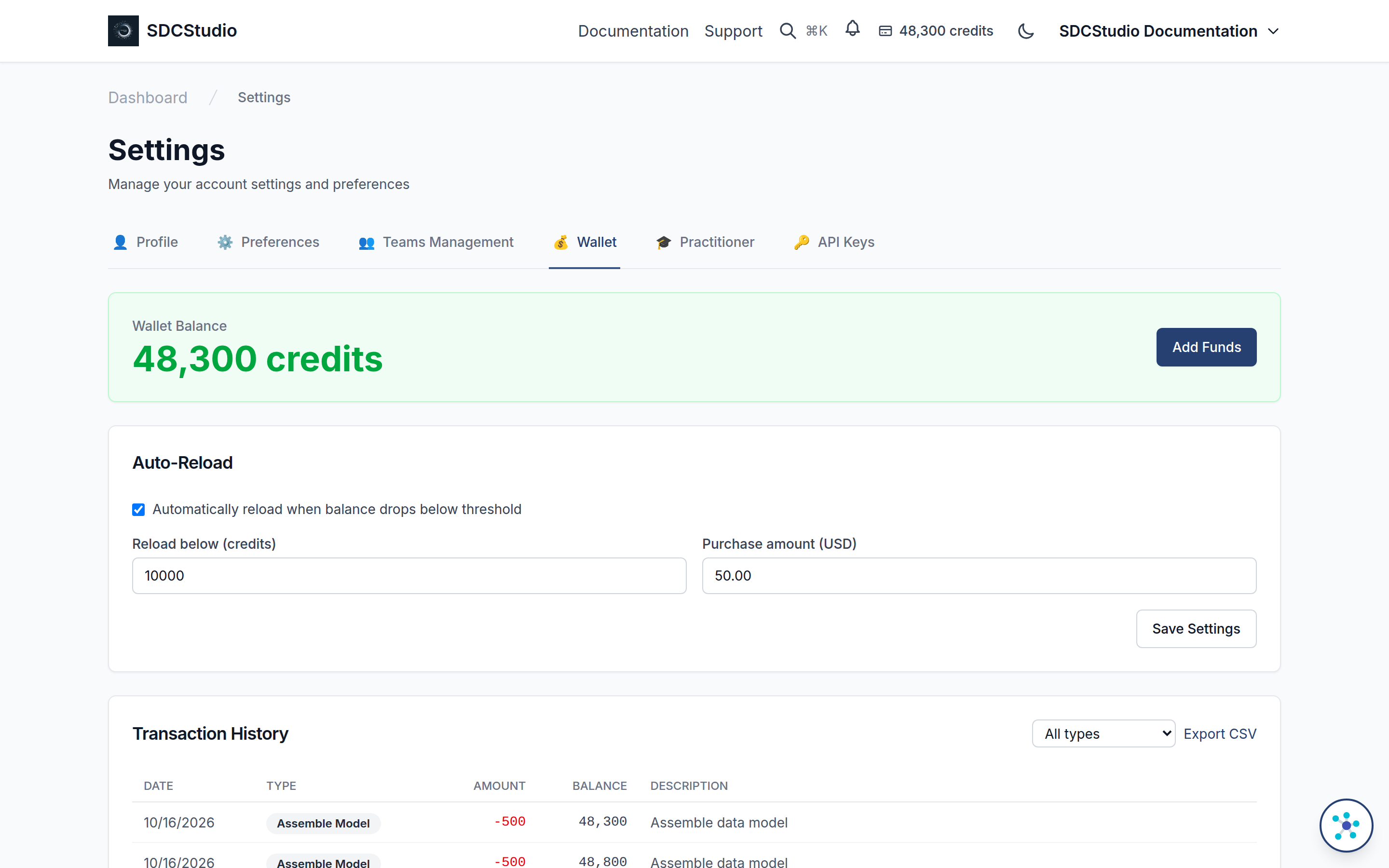
Some actions are charged to your wallet and are refused with a 402 (nothing is created or charged) when the balance is too low:
| Action | Credits |
|---|---|
| Create a component or cluster (wizard, form or API) | 100 |
| Create a data model (Model Wizard or New Model form) | 500 |
| Download App or Download Kit (the first download of each model; later ones free) | 1,500 |
| Settlement Receipt (PERMIT or DENY) | 1,000 |
1,000 credits are one dollar. Uploading a file, editing, publishing and generating a package are free and never return 402.
Open Settings and the Wallet tab (/app/settings?tab=wallet), click Add Funds, pick a pack ($10, $25, $50, $100 or $250) and complete the Stripe checkout. Then repeat the action.
Upload stops with an error that mentions credits
AI processing mints a component for every column it does not reuse, and a cluster for each group, at 100 credits each; reused components are free. The balance is checked before parsing (at least 100 credits) and again before the agent stage against the full estimate. If either check fails the upload goes to status error with a message such as "Insufficient credits. Minting 12 new components costs 1,200 credits. You have 300." Nothing is charged. Add funds, then upload the file again.
Uploading and processing
The Upload page refuses the file
- "Invalid file type": only
.csvand.md(a dataset template with YAML front matter) are accepted. - "File size must be less than 50MB": split the CSV or remove columns you do not need modeled.
- "Please select a project": the project is required before Upload File does anything.
- "File validation failed": the file is checked in the browser before it is sent. A CSV must not be empty and must have a header row with at least one column. A Markdown template must have
template_version,dataset.nameanddataset.descriptionin its front matter. Fix the file and choose it again.
The row stays at uploaded
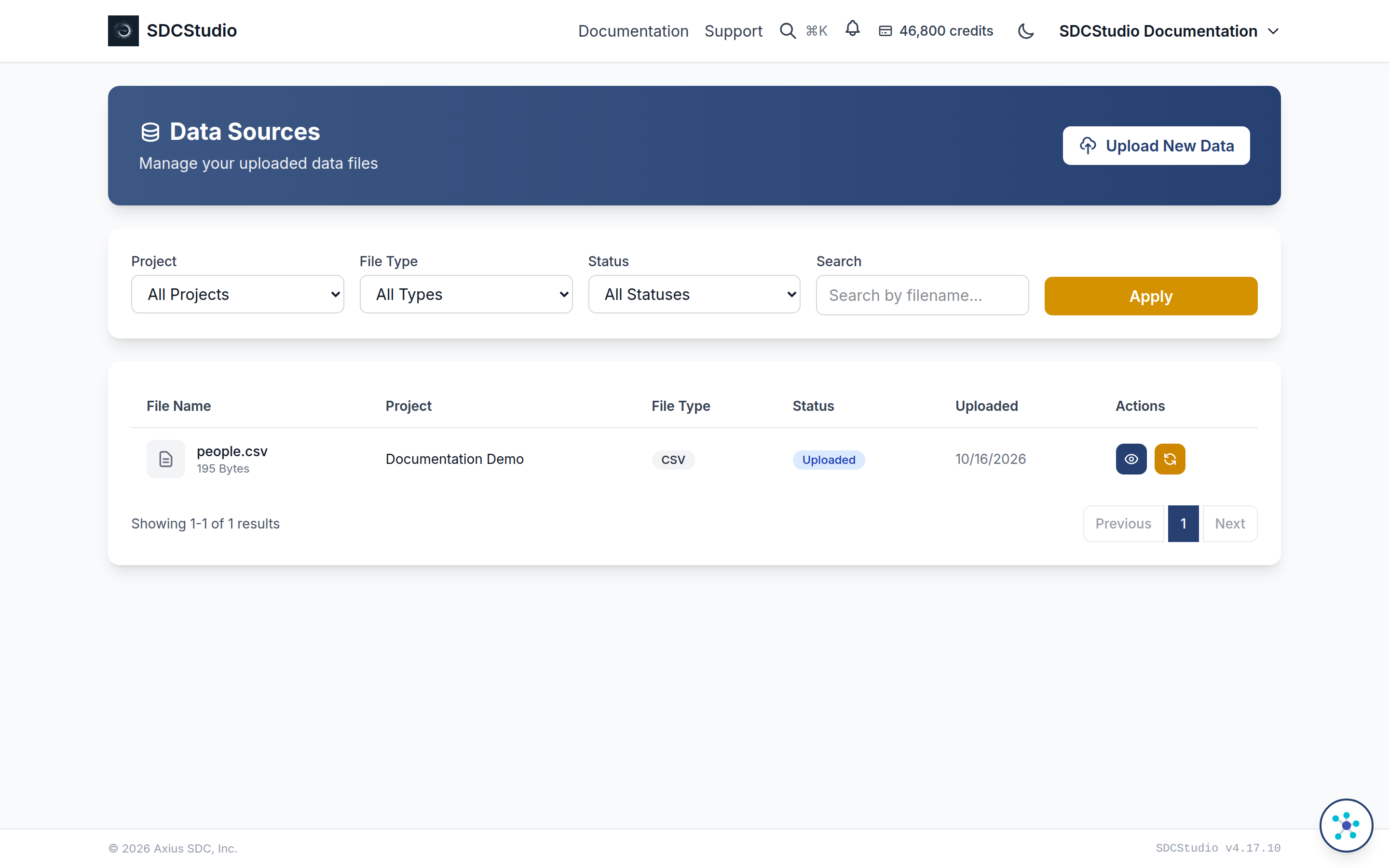
Processing did not start. On the Data Sources page click the row's Trigger Processing action, then reload the page.
The row stays at parsing or agent_processing
There is no progress bar, time estimate or cancel button. Parsing is quick; the agent stage can take several minutes for a wide file because every column is analyzed and linked. Reload the page to see the current status. If a row has not moved for a long time, send the file name and upload time to contact@axius-sdc.com.
Status error
The file could not be parsed, or the credit check failed. Click View Details on the row: the Processing Details dialog shows the Error Message and the Error Phase. For a parse failure, check the delimiter, the header row, quoting and the encoding (UTF-8), or the front matter of a Markdown template, then upload the corrected file as a new upload; there is no retry for this status.
Status agent_error
Parsing succeeded and the AI stage failed. Click the row's Retry Processing action: the parsed data is kept and only the agent stage runs again. If it fails a second time, copy the Error Message from View Details and send it with the file name to contact@axius-sdc.com.
Status completed but the model needs changes
Every generated component and the model are drafts: open them, edit, and publish when you are satisfied. The row's Review Metadata action opens the metadata review for the upload.
Publishing
"Cannot publish Cluster ... unpublished components"
A cluster publishes only when every component in it is published, and a model publishes only when its data cluster, subject and provider parties and any participations are published. Open each named component, go to Review & Save and click Save & Publish, then publish the cluster, then the model. A component with a reference range needs that range published first.
"Cannot publish component with 'COPY -- ' prefix"
A copy keeps the label of its source with a COPY -- prefix. Rename it before publishing.
A published component needs a change
Publishing is one-way; a published component cannot be edited or unpublished. Use Copy on the component page (shown only for published items; choose the project to copy into). The copy is a new draft with a new ID: rename it, change it, publish it and use it in a copy of the model. To take the old one out of circulation use Retire with a reason; it stays valid and resolvable by its ID but leaves lists, search and new assemblies. Retire is available to the project owner, team admins and staff; only staff can unretire.
Generating and apps
The model page shows "Model Not Published" instead of Generate
Follow the steps on the notice: publish each child component, click Publish on the model, then return to the Model Generation card.
Generate is gone after one click
Package generation is a one-time operation. Once it has run, the card shows Download Complete Package (ZIP). If the first click failed with an error, reload the page; Generate is shown again until a package exists.
Generate App fails
Generate App (choose one) builds a Lightweight or an Enterprise application from a published model that already has a package; generating is free. A failure shows the error text under the profile with a Retry button. Each profile is generated once per model: after a successful generation that profile's box shows Download App and "App already generated", and the other profile can still be generated. The first Download App of a model, either profile, or its first Download Kit from the Supabase box, is 1,500 credits; later downloads of it are free.
The downloaded Enterprise app will not start
The Enterprise profile runs PostgreSQL, GraphDB, SirixDB and Keycloak and needs at least 6 GB of memory allocated to Docker. The README in the ZIP has the steps for each profile.
API keys
API calls return 401
Send the key in the header Authorization: Token sdcs_.... "Invalid, revoked or expired API token." means the key is wrong, was revoked or rotated, or has expired; "User inactive or deleted." means the account is disabled. Keys are managed in Settings on the API Keys tab: Create key shows the full key once ("Copy this key now. It will not be shown again."); Rotate Key issues a replacement and invalidates the old one; Revoke Key disables it, and anything using it stops working.
API calls return 402
See Credits; the response body carries the cost and your balance.
API calls return 403 with key_scope or key_spend_limit
key_scope: the key lacks the scope the call needs (the body's scope; its scopes are what it has). Every write needs Build, including an estimate; every charge needs Spend. key_spend_limit: the charge would take the key past its spending limit, even though the wallet could pay; the body carries the limit, what is spent and what the call needs. Create a key with the scope or a higher limit in Settings > API Keys. See API Keys.
API calls return 409
published_is_immutable: a PUT or PATCH on a published component or model; a change is a copy (see Copy and Retire). stale_estimate: the estimate_id sent to assemble/ no longer matches the title and tree; estimate again and show the new result (see the assembly reference).
API calls return 403 with session_required
Creating or rotating a key, generating or refreshing the legacy key, changing your profile and changing auto-reload are done by you, signed in, in Settings; no API key can do them, whatever its scopes. See API Keys.
Ontologies
Upload Ontology says the abbreviation or URI is already in use
The form shows the server's message under the field. The namespace abbreviation and the namespace URI must each be unique across the server. Choose a different abbreviation, check the URI, and upload again. The form also refuses files that are not TTL, OWL, RDF, N3 or NT, or larger than 10 MB, with its own message.
The ontology shows "Filesystem Only" with an error
The file was stored but could not be loaded into the triplestore; the error text is shown on the entry and on its detail page. Check the file's syntax and that the content matches the extension (.owl and .rdf are read as RDF/XML, the others as Turtle), then click Reprocess on the list or the detail page. See the Semantic Enhancement Guide.
Support
- Email contact@axius-sdc.com with the exact error text, the ID (ct_id) of the model, component or upload, and what you did before it appeared.
- Support in the top navigation (
/support/) has a request form; submissions go to the same address.
Related guides: Wallet and Billing, Uploading Data, AI Processing, API Keys, Generating Outputs, App Generation, Data Types.