Uploading Data and AI Processing
Reading time: ~7 minutes | Level: Beginner Prerequisites: Tutorial 2: SDCStudio Overview
What You'll Learn
- Which file formats SDCStudio accepts
- How to upload a file and monitor its progress
- What happens during Stage 1 (structural parsing) and Stage 2 (AI enhancement)
- How automatic string format inference works
- Tips for getting the best results from AI processing
Supported File Formats
SDCStudio currently accepts two file formats:
CSV (recommended for tabular data): - Must have a header row with column names - UTF-8 encoding required - Comma-separated values - Best for: spreadsheets, database exports, structured datasets
Markdown (for documentation-driven modeling): - Structured with headers and sections - Follows SDC template format (Form2SDCTemplate) - Best for: specifications, data dictionaries, domain models
Other formats (JSON, XML, PDF, DOCX, Excel) are not currently supported. For Excel files, export to CSV first.
How to Upload
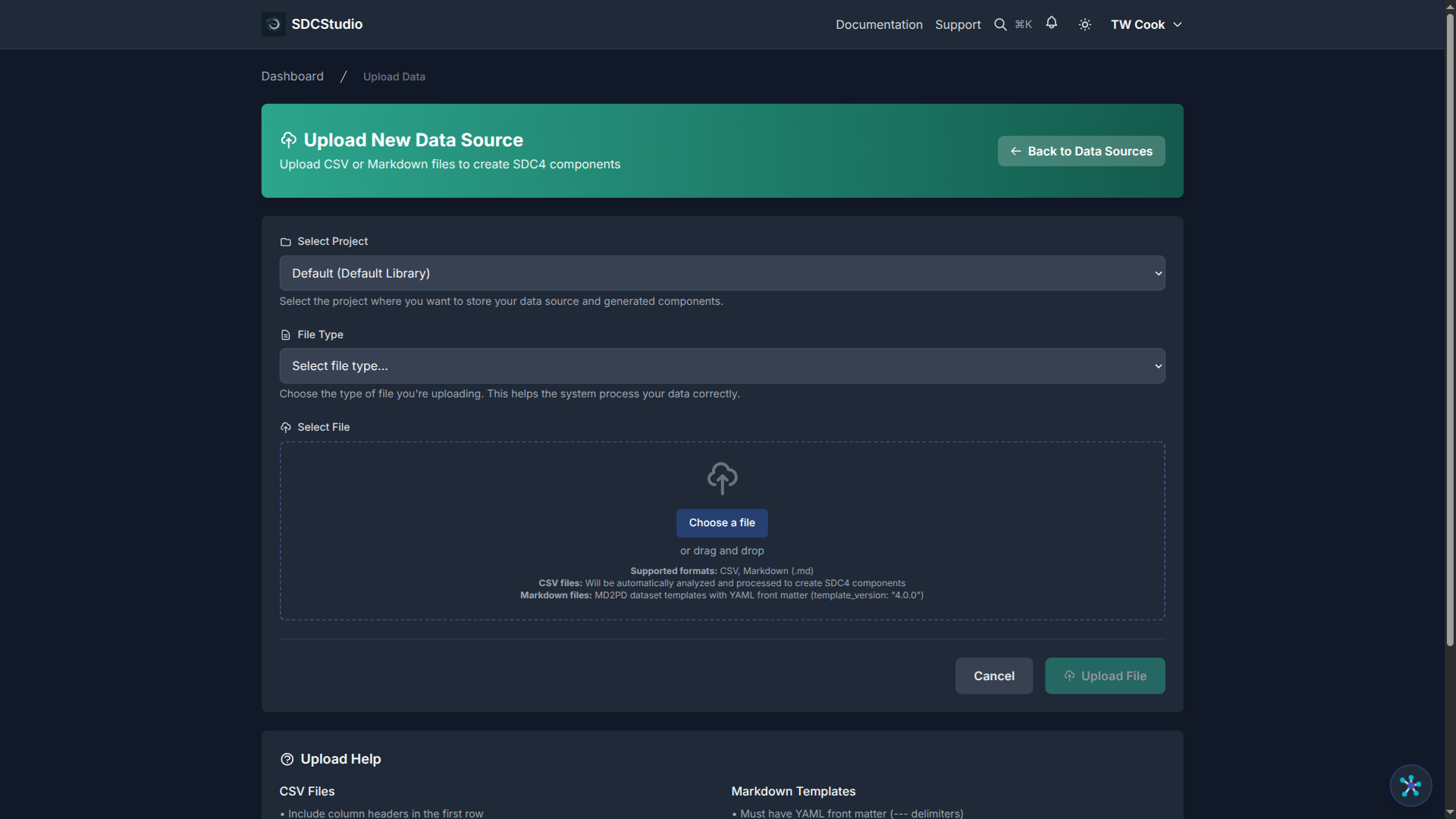
- Open your project and click the Data Sources tab
- Click Upload Data
- Select your CSV or Markdown file (maximum 50 MB, recommended under 10 MB)
- Click Upload
Your file appears in the Data Sources list with a status badge that updates in real-time.
The Two-Stage Pipeline
SDCStudio processes your file in two distinct stages. This design means that if AI processing fails, you can retry without re-uploading or re-parsing the file.
Stage 1: Structural Parsing
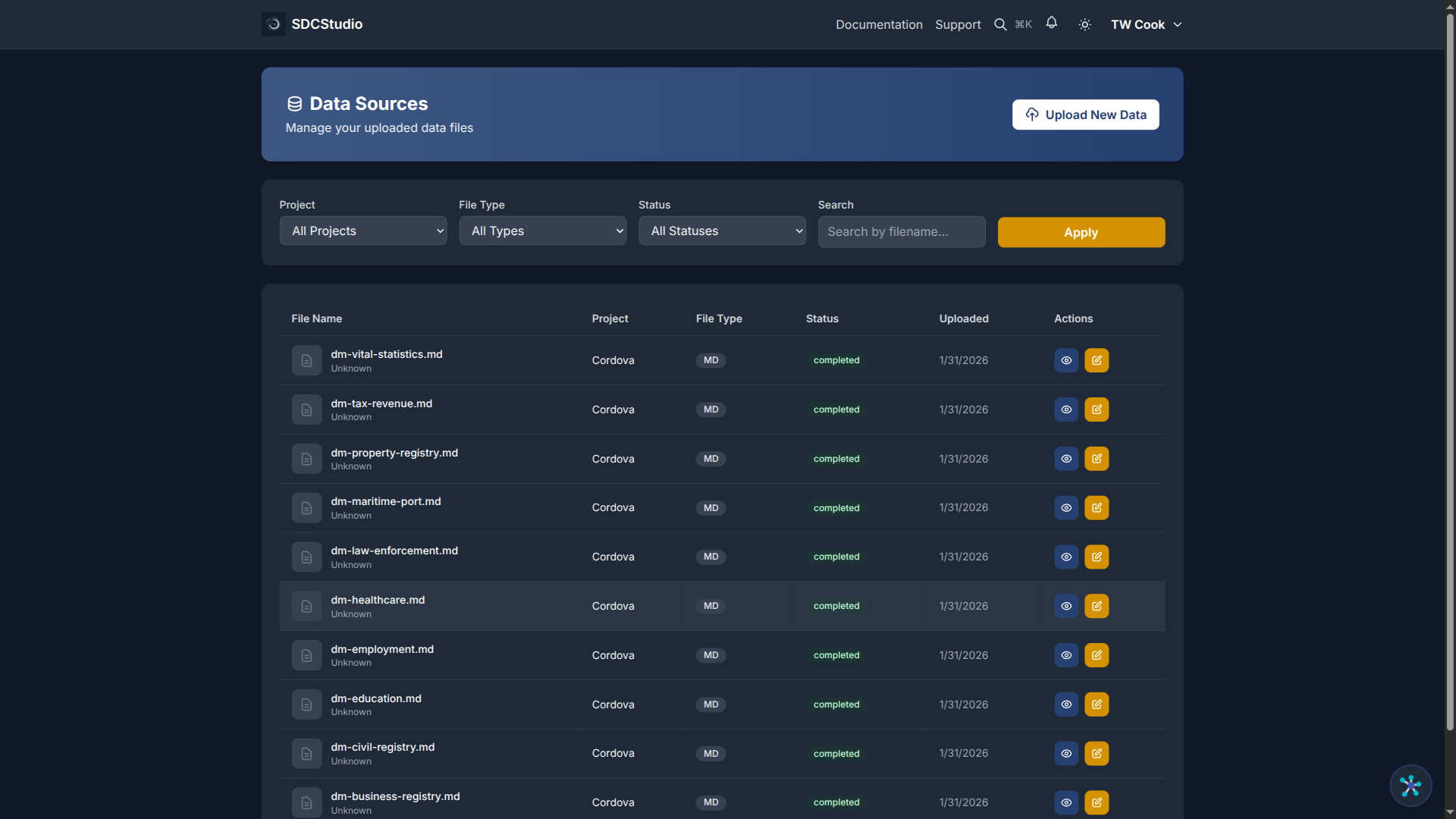
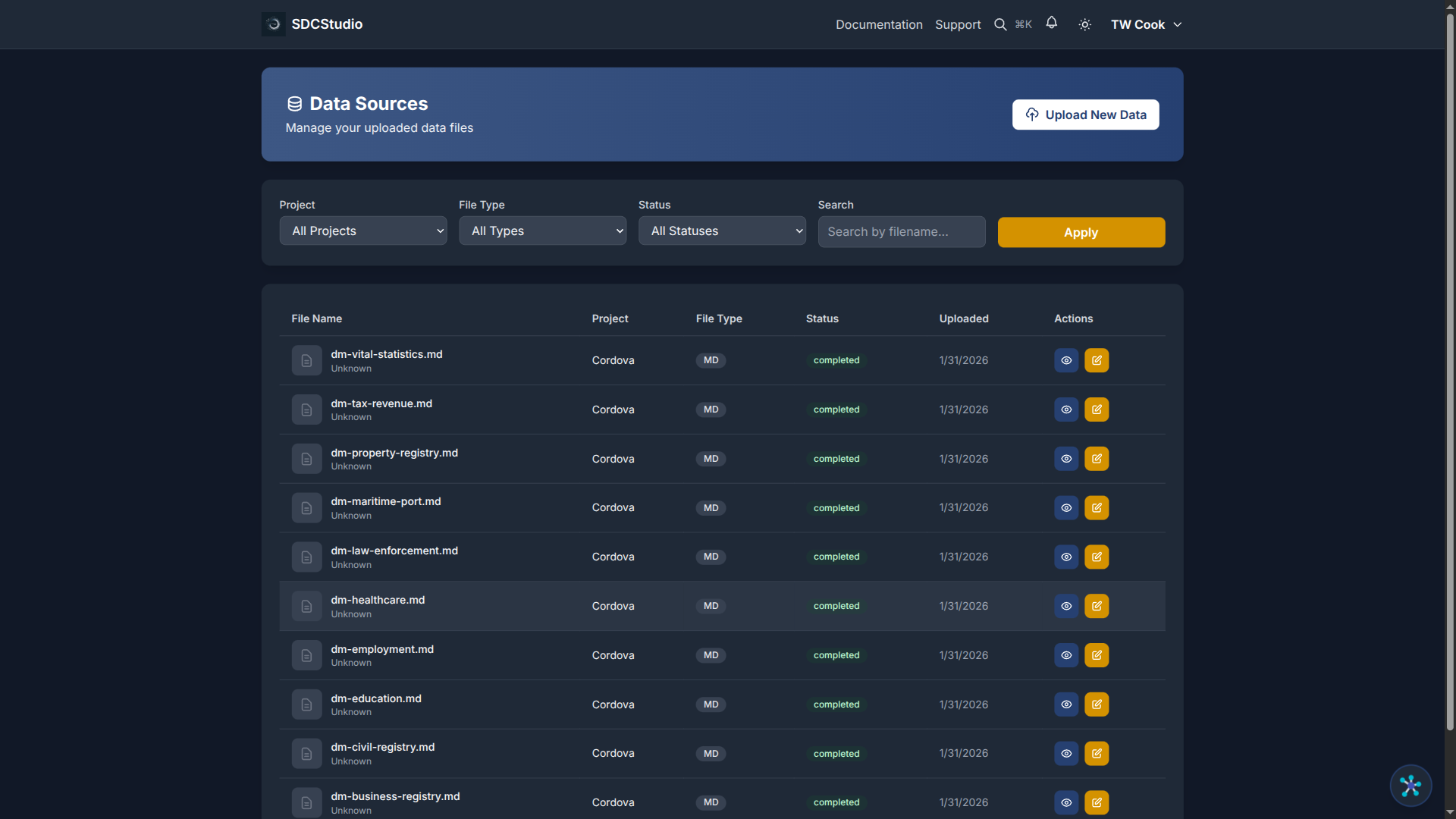
Duration: 30 seconds to 2 minutes
Status flow: UPLOADED → PARSING → PARSED
This stage is fast and deterministic — no AI or LLM calls. The system:
- Detects the file format (CSV vs Markdown)
- Reads the structure — headers, columns, row counts
- Infers basic data types — integer, decimal, string, date, boolean
- Detects string format patterns automatically (see below)
- Creates a ParsedData record — a standardized representation stored in the database
For a CSV file, the output at this stage is a list of columns with detected types and sample values:
customer_id     → integer
first_name      → string
email           → string (email pattern detected)
signup_date     → date (ISO 8601)
status          → string (categorical: 2 unique values)
total_purchases → integer
price           → decimal
Automatic String Format Inference
During parsing, the system scans sample values in each column and detects common patterns without using AI. Detected formats include:
- Email addresses
- UUIDs
- IPv4 addresses
- US ZIP codes (5-digit and ZIP+4)
- Phone numbers
- ISO dates
- URLs
- SSNs
- MAC addresses
- Hex color codes
When a pattern is found in the majority of sample values, the system pre-populates an XML Schema-compatible regex for that column. This saves manual configuration and improves the validation rules that the AI builds on in Stage 2.
Stage 2: AI Enhancement
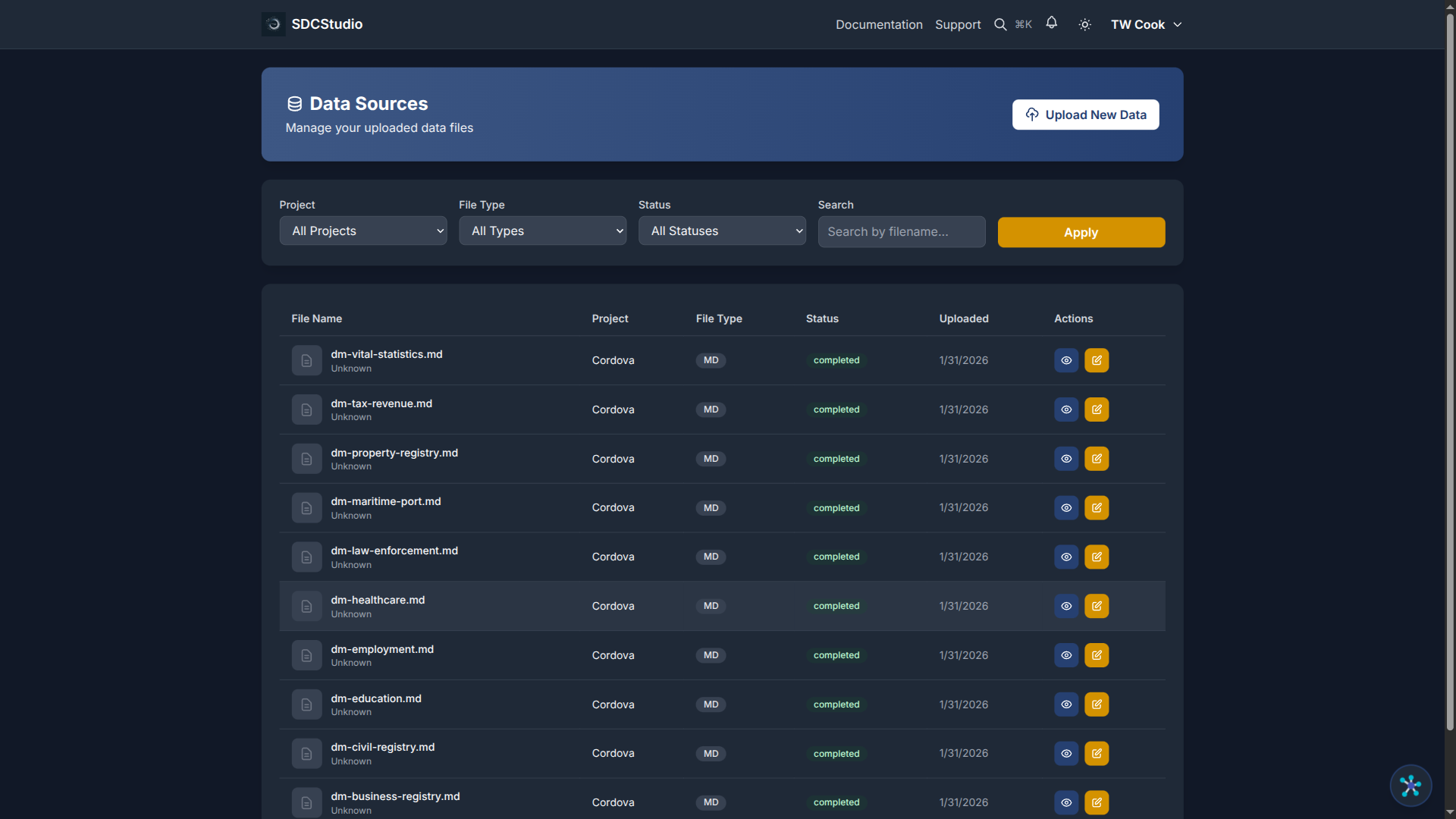
Duration: 1 to 5 minutes
Status flow: PARSED → AGENT_PROCESSING → COMPLETED
This is where the intelligence happens. Multiple AI agents work together:
- DataModelAgent — creates the top-level model and coordinates other agents
- ClusterAgent — organizes components into logical groups
- Type-specific agents — create SDC4 components for each column:
- Semantic analysis: understands what each column represents
- Pattern recognition: refines format detection from Stage 1
- Ontology matching: links to your uploaded ontologies and built-in vocabularies
- Validation rules: suggests constraints (min/max, patterns, enumerations, required/optional)
- Labels and descriptions: generates human-readable names and documentation
The AI uses your uploaded ontologies during this stage. If you uploaded a healthcare ontology, an mrn column gets mapped to FHIR Patient.identifier. If you uploaded a product vocabulary, a sku column gets matched to your product codes. This is why uploading ontologies before data files matters.
Status Reference
| Status | Badge Color | Meaning | Action |
|---|---|---|---|
UPLOADED |
Blue | File received | Automatic — parsing starts |
PARSING |
Blue | Reading structure | Wait |
PARSED |
Blue | Structure analyzed | Automatic — AI starts |
AGENT_PROCESSING |
Yellow | AI creating components | Wait |
COMPLETED |
Green | Model ready | Review your model |
AGENT_ERROR |
Red | AI failed | Click Retry |
ERROR |
Red | File processing failed | Check file format, re-upload |
Tips for Best Results
Use descriptive column names:
- Good: customer_email, order_total_amount, signup_date
- Bad: col1, data, field_x
Keep data consistent:
- Same date format throughout a column (don't mix 2024-01-15 with 1/15/24)
- Same type per column (don't mix numbers and text)
Include enough rows: - Minimum 10 rows for reliable type inference - 20-100 rows is ideal for pattern detection - Include edge cases (min values, max values, empty cells)
Upload ontologies first: - Go to Settings → Ontologies before your first data upload - Standard ontologies (FHIR, SNOMED, schema.org) are already built in - Upload your organization's custom vocabularies
Start small: - Upload a sample (50-100 rows) first - Validate the generated model - Upload the full dataset after you are satisfied
What to Do After Processing
Once your file shows COMPLETED:
- Navigate to Data Models in your project
- Click the generated model
- Review the structure, types, and validation rules
- Edit any component that needs refinement
- When satisfied, publish and generate outputs
Summary
- SDCStudio accepts CSV and Markdown files
- Processing happens in two stages: fast structural parsing, then AI enhancement
- The AI creates a complete model with types, validation, labels, and semantic links
- Uploading ontologies before data files improves AI quality
- If AI processing fails, click Retry — no re-upload needed
Next Tutorial
Understanding Components and Data Types — Learn about the SDC4 type system and how to interpret the components the AI created for your data.