Semantic Linking — Adding Meaning to Your Data
Reading time: ~6 minutes | Level: Intermediate Prerequisites: Tutorial 4: Understanding Components and Data Types
What You'll Learn
- What semantic linking is and why it matters
- How RDF predicates and objects work
- How to use the Semantic Linking step in the wizard and edit forms
- How to search for vocabulary terms using the Google search button
- How ontology uploads improve AI processing
What is Semantic Linking?
Semantic linking connects your data components to universal vocabularies and ontologies. Without it, a field labeled "status" is ambiguous — it could mean account status, order status, or health status. With semantic linking, that field is explicitly tied to a specific concept in a recognized vocabulary:
Component: "Account Status"
  → rdf:type → schema.org/accountStatus
Now any system that reads the model knows exactly what "status" means, regardless of what the field is named locally.
Why It Matters
- Interoperability: Systems can automatically understand your data without custom mappings
- AI quality: SDCStudio's AI uses semantic links to make better suggestions
- Standards compliance: Links to recognized vocabularies (SNOMED, LOINC, schema.org) ensure your model follows industry standards
- Output richness: Semantic links flow into JSON-LD, RDF triples, and SHACL outputs
RDF Predicates and Objects
Semantic links use the predicate-object pattern from RDF (Resource Description Framework):
- Predicate: The relationship type (e.g.,
rdf:type,skos:exactMatch,rdfs:subClassOf) - Object: The target concept (e.g.,
schema.org/email,SNOMED:271649006)
Together, they form a statement about your component:
[your component] --predicate--> [ontology concept]

Example:
  customer_email --rdf:type--> schema:email
  blood_pressure --skos:exactMatch--> SNOMED:271649006
  order_total    --rdf:type--> schema:Price
Common Predicates
| Predicate | Meaning | When to Use |
|---|---|---|
rdf:type |
"is a" | The component is this kind of thing |
skos:exactMatch |
Exact equivalent | Your concept is identical to the target |
skos:closeMatch |
Close equivalent | Your concept is similar but not identical |
rdfs:subClassOf |
Subclass of | Your concept is a specific kind of the target |
dct:subject |
Subject/topic | The component relates to this subject area |
Using the Semantic Linking Step
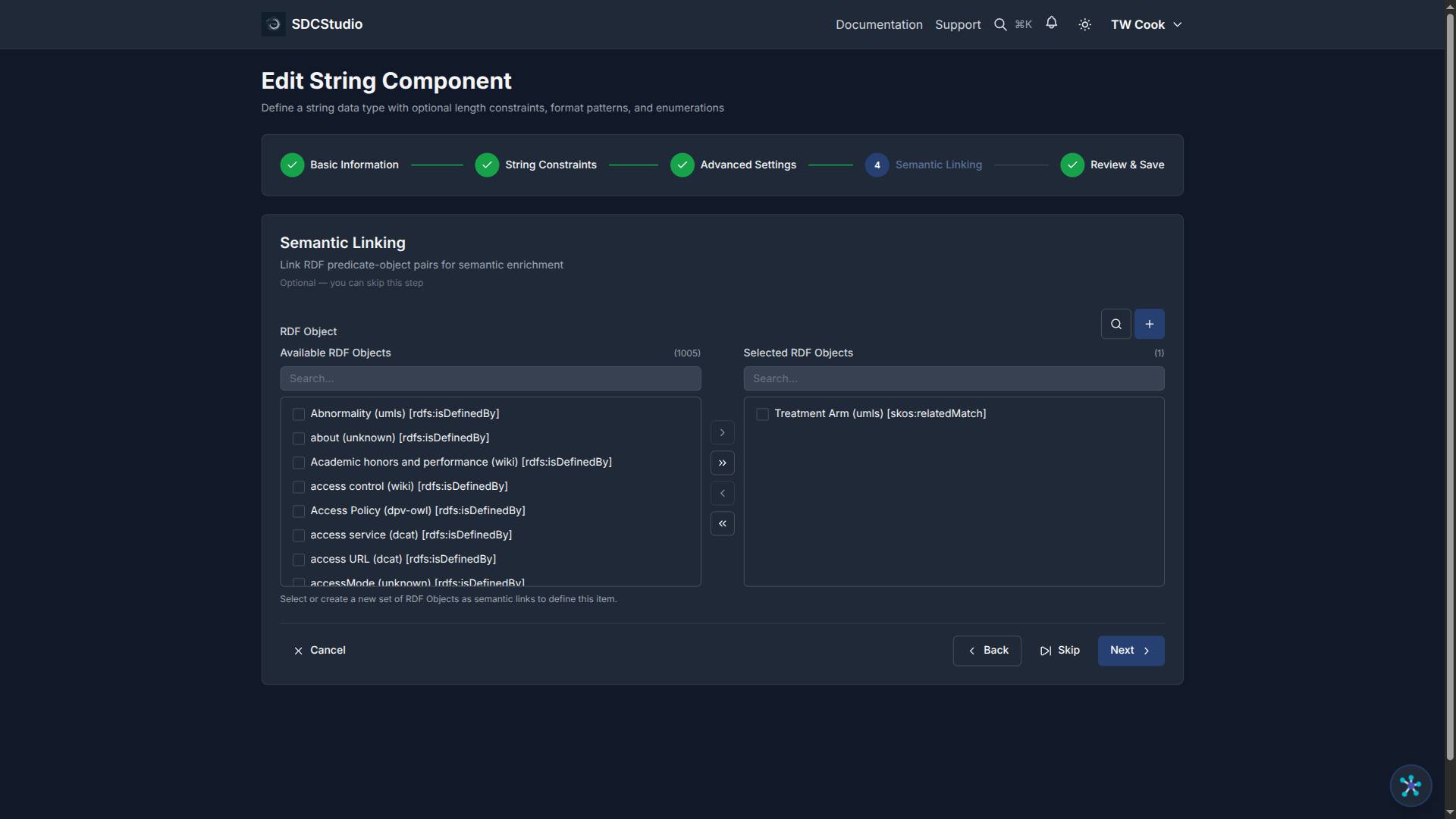
The Semantic Linking step appears in both the creation wizard (Step 5 of 6) and the edit form (Step 4 of 5 for data types, Step 3 of 4 for clusters).
The TransferList
The step uses a TransferList — the same dual-pane selector used in cluster component selection:
- Left pane: Available predicate-object pairs that have been defined in the system
- Right pane: Pairs currently linked to this component
To add a semantic link: 1. Find the desired predicate-object pair in the left pane 2. Select it 3. Move it to the right pane
To remove a semantic link: 1. Select the pair in the right pane 2. Move it back to the left pane
Creating New Predicate-Object Pairs
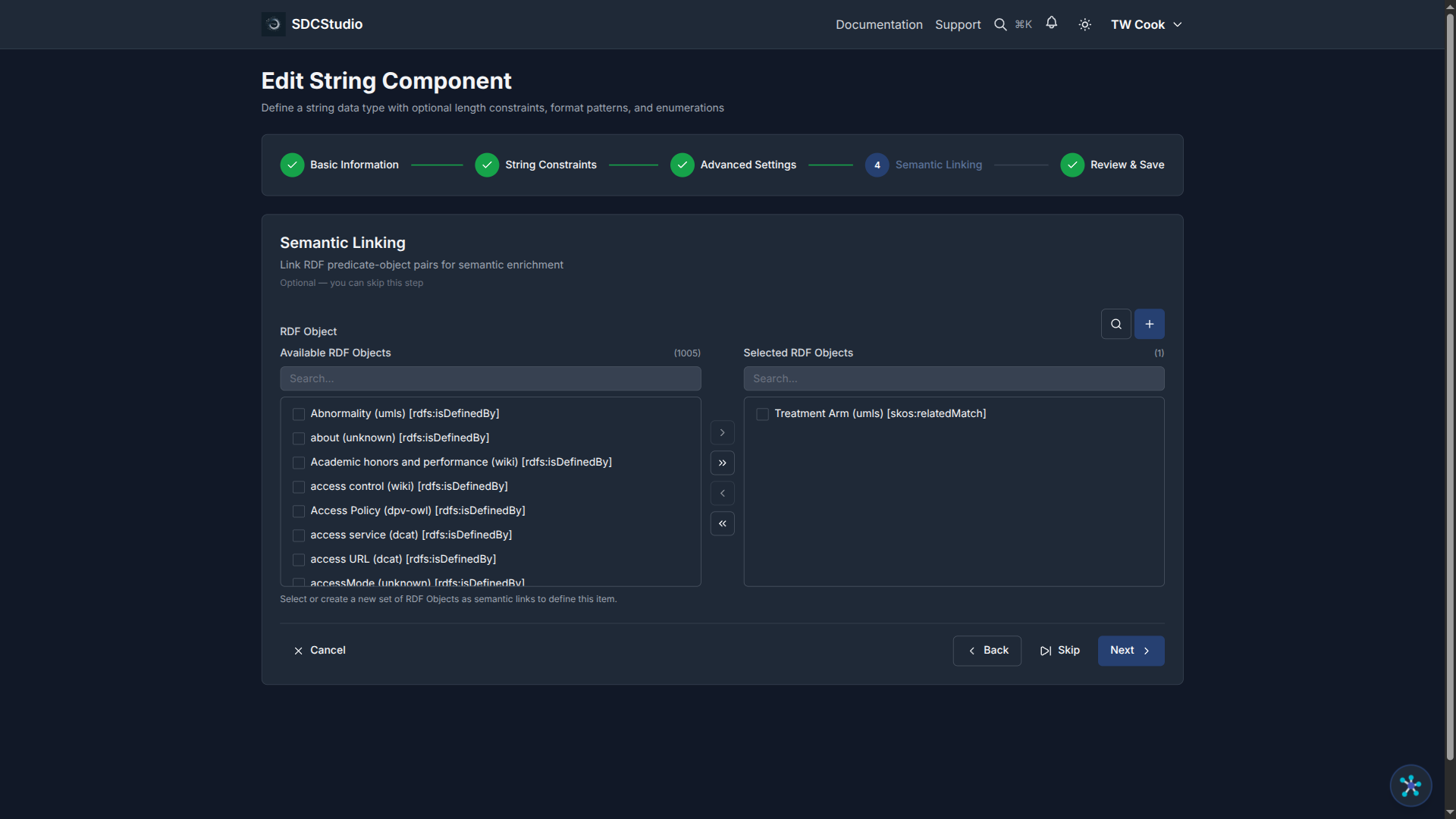
If the pair you need does not exist yet:
- Click the Create New button
- Enter the predicate (select from common predicates or enter a custom URI)
- Enter the object (the ontology concept URI or term)
- Save the new pair
- It now appears in the left pane for selection
The Google Vocabulary Search Button
Next to the object field, you will find a Google search button (magnifying glass icon). Clicking it opens a Google search pre-configured with ontology-focused sources:
- OBO Foundry (biomedical ontologies)
- BioPortal (NCBO ontology repository)
- LOV (Linked Open Vocabularies)
- Other ontology registries
This is useful when you know what concept you need but are not sure which ontology contains it or what its exact URI is. Search, find the concept, copy the URI, and paste it into the object field.
How Ontologies Improve AI
When you upload ontologies in Settings before processing data files, the AI agents use them during Stage 2 (AI Enhancement):
Without ontologies: The AI makes generic type and validation suggestions based on column names and data patterns.
With ontologies: The AI matches columns to your ontology concepts, producing: - Domain-specific labels and descriptions - More accurate type selection - Richer validation rules - Pre-populated semantic links
Uploading Ontologies
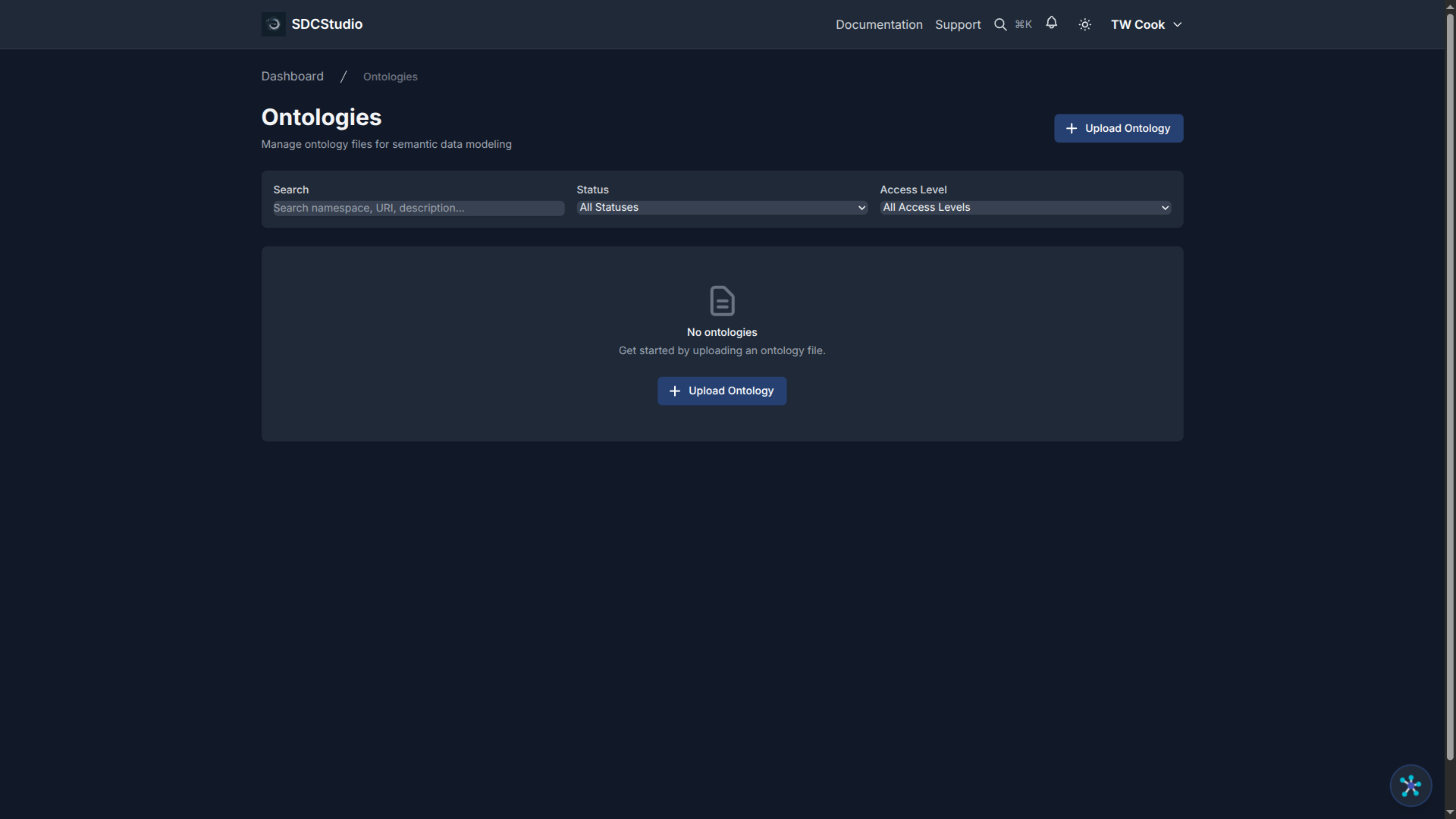
- Go to Settings → Preferences → Manage Ontologies (or navigate to
/app/ontologies) - Click Upload Ontology
- Select a file in Turtle (.ttl), OWL (.owl), RDF (.rdf), N3 (.n3), or N-Triples (.nt) format
- Enter the namespace abbreviation and URI
- Click Upload
Standard ontologies (FHIR, SNOMED, NIEM, schema.org) are already built into SDCStudio. Only upload your organization's custom or domain-specific vocabularies.
Practical Examples
Healthcare: Blood Pressure Component
Component: "Systolic Blood Pressure" (XdQuantity, units: mmHg)
Semantic links:
  rdf:type       → LOINC:8480-6  (Systolic blood pressure)
  skos:exactMatch→ SNOMED:271649006
E-Commerce: Product Price Component
Component: "Unit Price" (XdQuantity, units: USD)
Semantic links:
  rdf:type       → schema:price
  dct:subject    → GoodRelations:UnitPriceSpecification
General: Email Component
Component: "Contact Email" (XdString, pattern: email regex)
Semantic links:
  rdf:type       → schema:email
  skos:closeMatch→ vcard:hasEmail
Tips
Start with rdf:type: If you are unsure which predicate to use, rdf:type ("is a") is almost always the right starting point.
Link the most important components first: You do not need to semantically link every component. Focus on the core domain concepts that will benefit most from interoperability.
Use the same vocabulary consistently: If you use schema.org for one component, use it for related components too. Mixing vocabularies for the same domain creates unnecessary complexity.
Semantic linking is optional but valuable: Your model works without semantic links, but the JSON-LD, RDF, and SHACL outputs will be significantly richer when links are present.
Summary
- Semantic linking connects your components to universal vocabularies using RDF predicate-object pairs
- The TransferList lets you select existing pairs or create new ones
- The Google search button helps you find the right ontology concept
- Uploading ontologies before data processing improves AI suggestions
- Focus on
rdf:typeand core components first
Next Tutorial
Publishing and Generating Outputs — Learn the publication workflow and how to generate your final output files.