Publishing and Generating Outputs
Reading time: ~6 minutes | Level: Intermediate Prerequisites: Tutorial 2: SDCStudio Overview
What You'll Learn
- Why publication is irreversible and what that means for your workflow
- The required publication order: children first, then model
- How to generate the output package (one-time operation)
- What output files are produced and what each one is for
- What to do if you need changes after publishing
Why Publication is Irreversible
Publication is a core SDC principle, not just a software feature. When you publish a component or model:
- Its definition becomes permanent and immutable
- Any data validated against it will always be interpretable
- The CUID-based identifiers (mc-... and ms-...) become fixed references
- Other models can safely import and reuse published components
This immutability is what makes SDC4 data long-lived. If published schemas could change, data validated against them would become unreliable.
The practical consequence: Verify everything is correct before publishing. Use Save (draft) freely while working. Only use Save & Publish when you are certain.
The Publication Order
Publication must follow a bottom-up order:
1. Publish all child components     (Save & Publish on each)
2. Publish the data model           (Publish button on model page)
3. Generate the output package      (Generate Package button — one-time)
You cannot publish a model if any of its child components are still in Draft status. SDCStudio enforces this.
Step 1: Publish Child Components
For each component in your model:
- Navigate to Components (
/app/components) - Open the component's detail page
- Click Edit
- Navigate to the Review & Save step
- Click Save & Publish
- Confirm the action
Repeat for every component. Check that all components show "Published" status before proceeding.
Step 2: Publish the Data Model
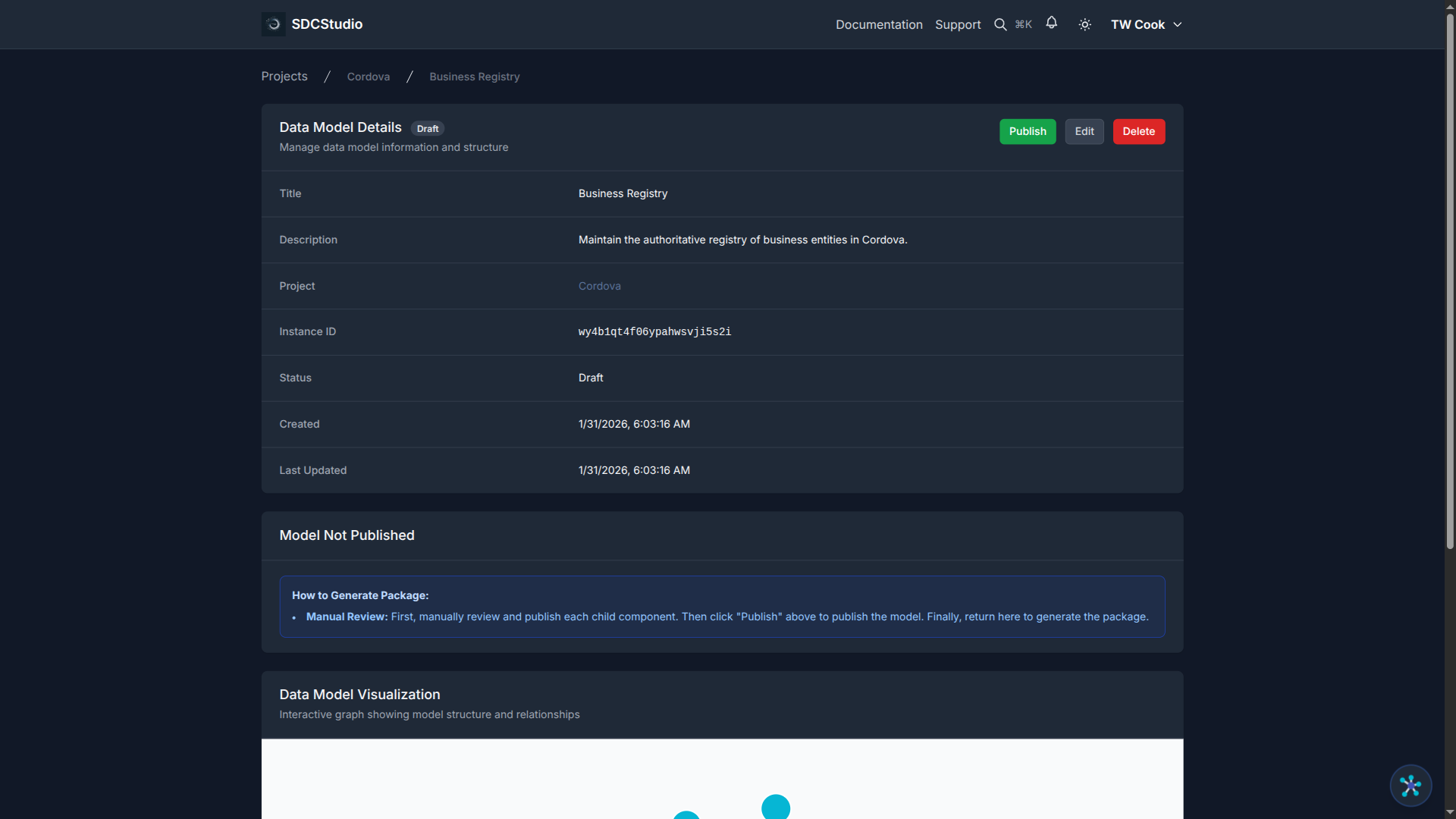
- Navigate to Data Models (
/app/models) - Click your model to open its detail page
- Verify all child components show "Published" status
- Click the Publish button on the model detail page
- Confirm the action
The model status changes from DRAFT to PUBLISHED. The Publish button disappears — this action can only be done once.
Step 3: Generate the Output Package
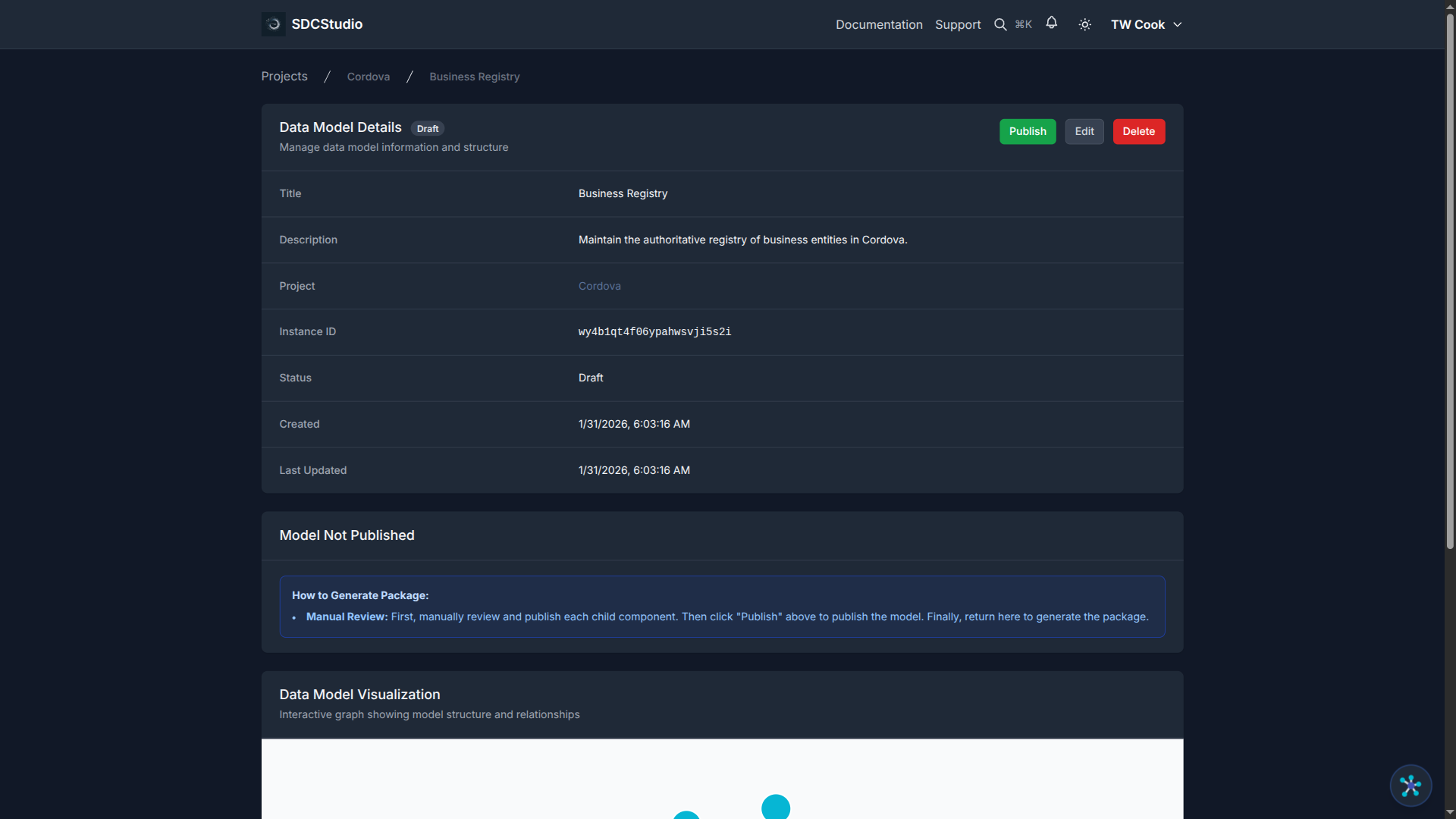
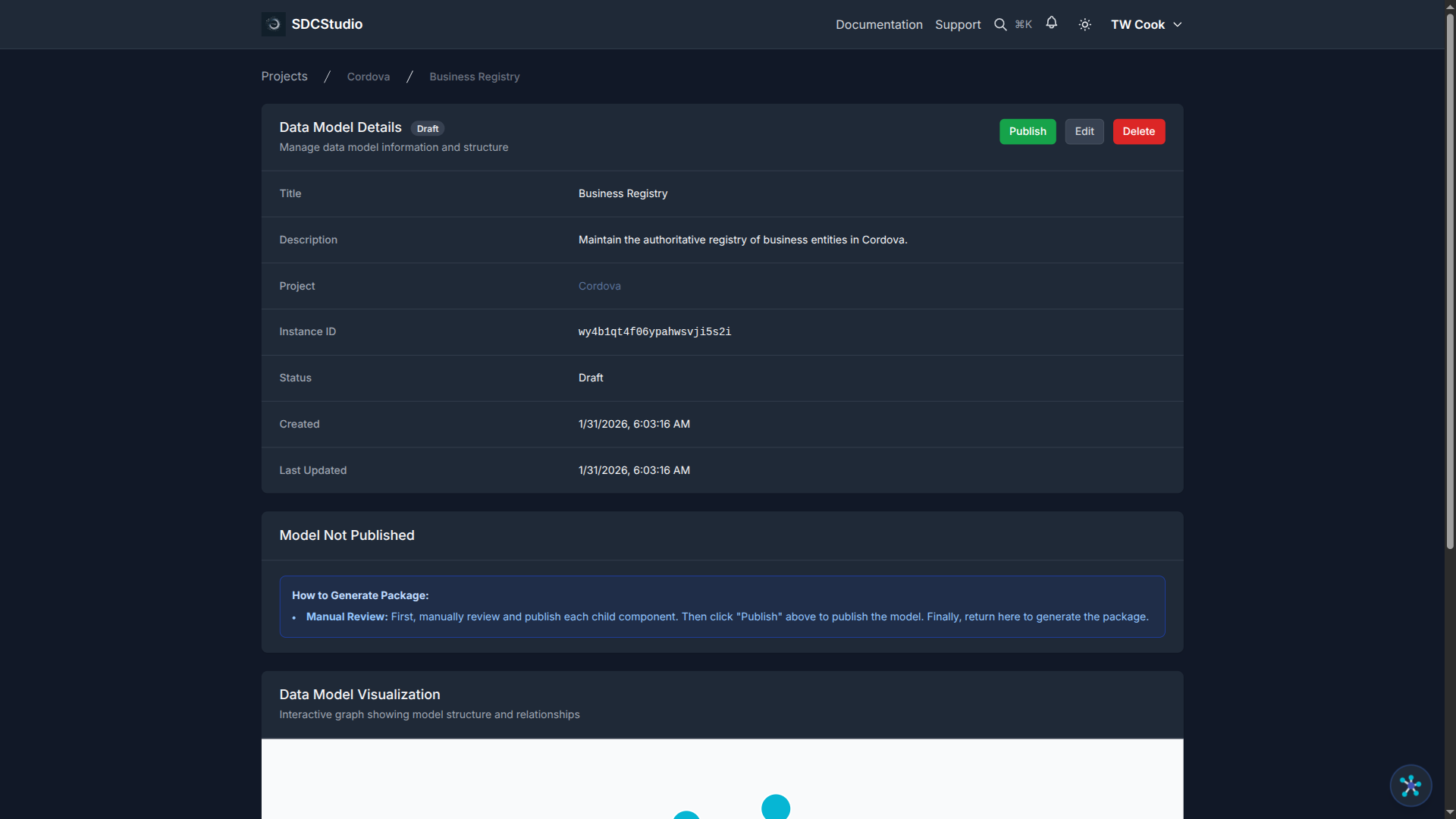
After publishing the model:
- On the model detail page, click Generate Package (One-Time Only)
- SDCStudio generates all output files in a single operation
- Download buttons appear for each file type
This is also a one-time operation. Once generated, the package cannot be regenerated.
Output Files
The generated package includes:
| File | Format | Purpose |
|---|---|---|
dm-{id}.xsd |
XML Schema | Structural validation — use this to validate XML data |
dm-{id}.xml |
XML Instance | Sample document conforming to the schema |
dm-{id}-instance.json |
JSON | Complete data example mirroring the XML structure |
dm-{id}.jsonld |
JSON-LD | Semantic description for linked data integration |
dm-{id}.html |
HTML | Human-readable documentation for review and sharing |
dm-{id}.rdf |
RDF (N-Quads) | Extracted triples for triple stores and knowledge graphs |
dm-{id}.ttl |
SHACL (Turtle) | Shape constraints for RDF data validation |
dm-{id}.gql |
GQL | CREATE statements for property graph databases |
dm-{id}.sha1 |
SHA1 hash | Integrity verification for the package |
{title}.zip |
ZIP archive | Complete package with all files above |
When to Use Each Format
XSD + XML: When you need to validate XML data or provide XML-based integration.
JSON Instance: When building REST APIs, JavaScript applications, or any JSON-based system.
JSON-LD: When integrating with semantic web systems, knowledge graphs, or linked data platforms.
HTML: When sharing documentation with stakeholders, training materials, or compliance reviews.
RDF: When loading data descriptions into triple stores (like Apache Jena Fuseki) for SPARQL queries.
SHACL: When you need RDF constraint validation — ensuring RDF data conforms to your model's rules.
GQL: When working with property graph databases like Neo4j.
Downloading Outputs
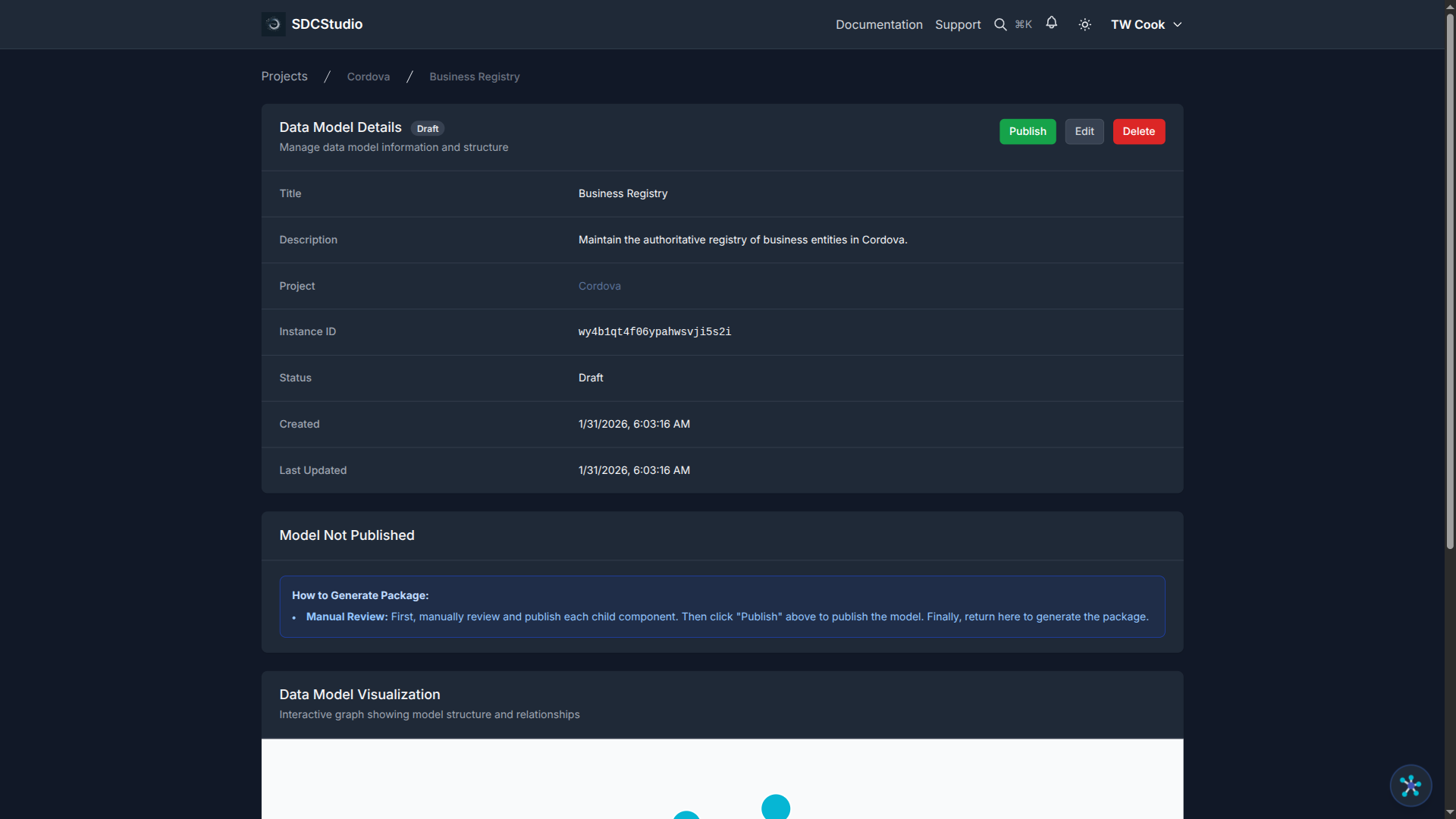
After package generation, you can download files in two ways:
Individual files: Click the download button next to each file type on the model detail page.
Complete package: Click the ZIP download button to get everything in one archive.
Save your downloads immediately and store them in a safe location. Since package generation is one-time, you cannot regenerate these files.
What If You Need Changes?
If you discover an issue after publishing:
- Create a new model — copy the structure from your published model as reference
- Create new components — with the corrections applied
- Organize into clusters — rebuild the structure
- Test thoroughly — verify everything before publishing again
- Publish the new version — follow the same bottom-up process
Versioning strategy: Use version indicators in model names (e.g., "CustomerModel v1", "CustomerModel v2"). Document what changed between versions. Keep published models as permanent historical records.
Pre-Publication Checklist
Before publishing, verify:
- [ ] All component labels are accurate and descriptive
- [ ] All descriptions explain what each component represents
- [ ] Data types are correct for each component
- [ ] Validation rules (patterns, ranges, enumerations) are tested
- [ ] Units are specified for all quantified types (XdCount, XdQuantity, XdFloat, XdDouble)
- [ ] Semantic links are in place for core components
- [ ] Cluster organization reflects the logical data structure
- [ ] All stakeholders have reviewed the model
Summary
- Publication is one-time and irreversible — it makes components and models permanent
- Publish in order: child components first, then model, then generate package
- The package generates 8+ output files in a single operation (also one-time)
- Download and save your outputs immediately after generation
- If changes are needed after publishing, create a new model version
Next Tutorial
Working with Models and Projects — Learn how to create models from scratch, organize projects, and plan your versioning strategy.