The Data Sources Page
Overview
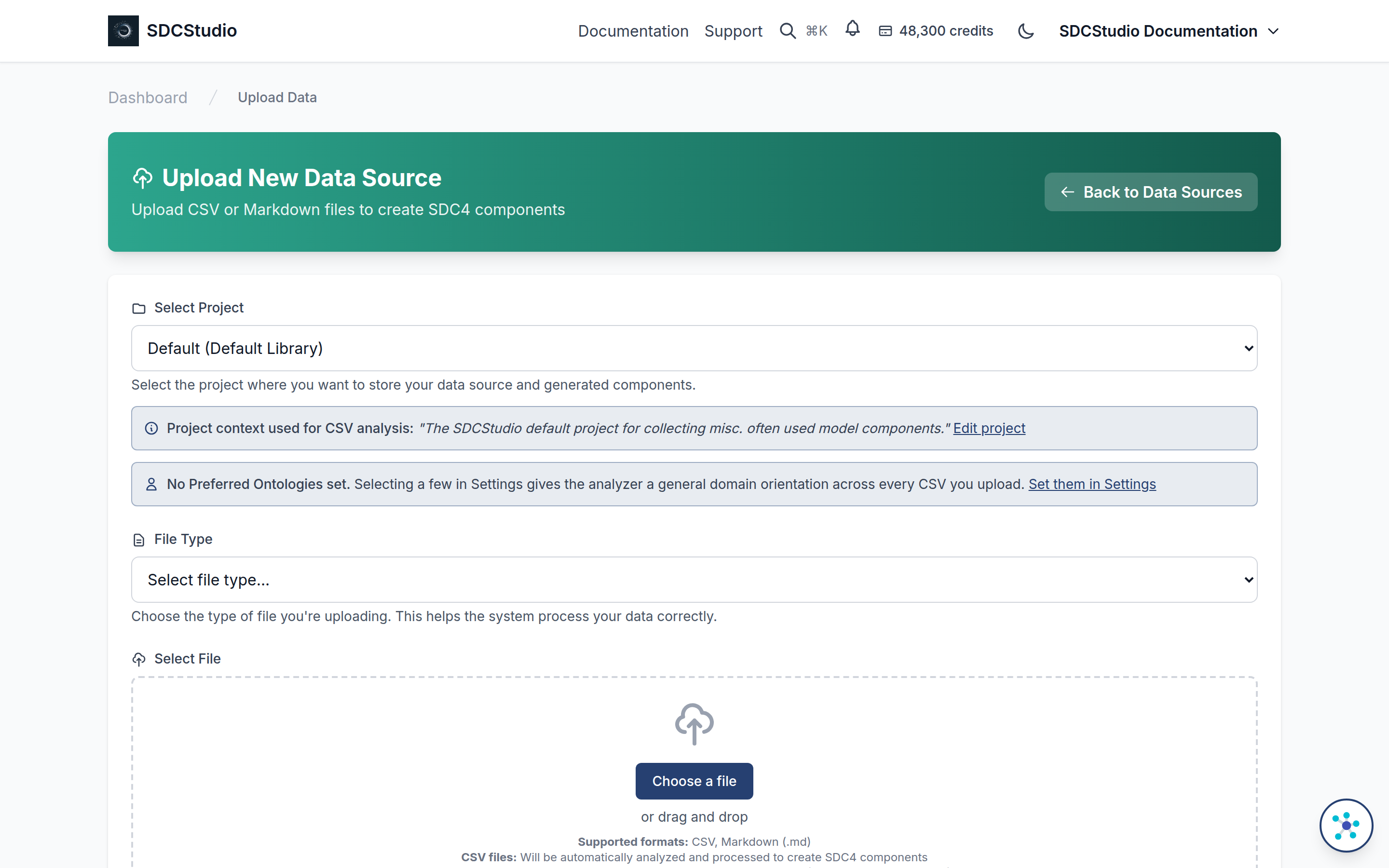
The Data Sources page at /app/data-sources is where you follow an upload after the Upload page accepts it. It lists every file uploaded to a project you own or belong to, shows the processing status of each, and holds the three actions you can take on an upload: open its processing details, start or restart processing, and review the column metadata the parser found. What the two processing stages do to a file is described in Uploading Data and AI Processing; this page covers the page itself.
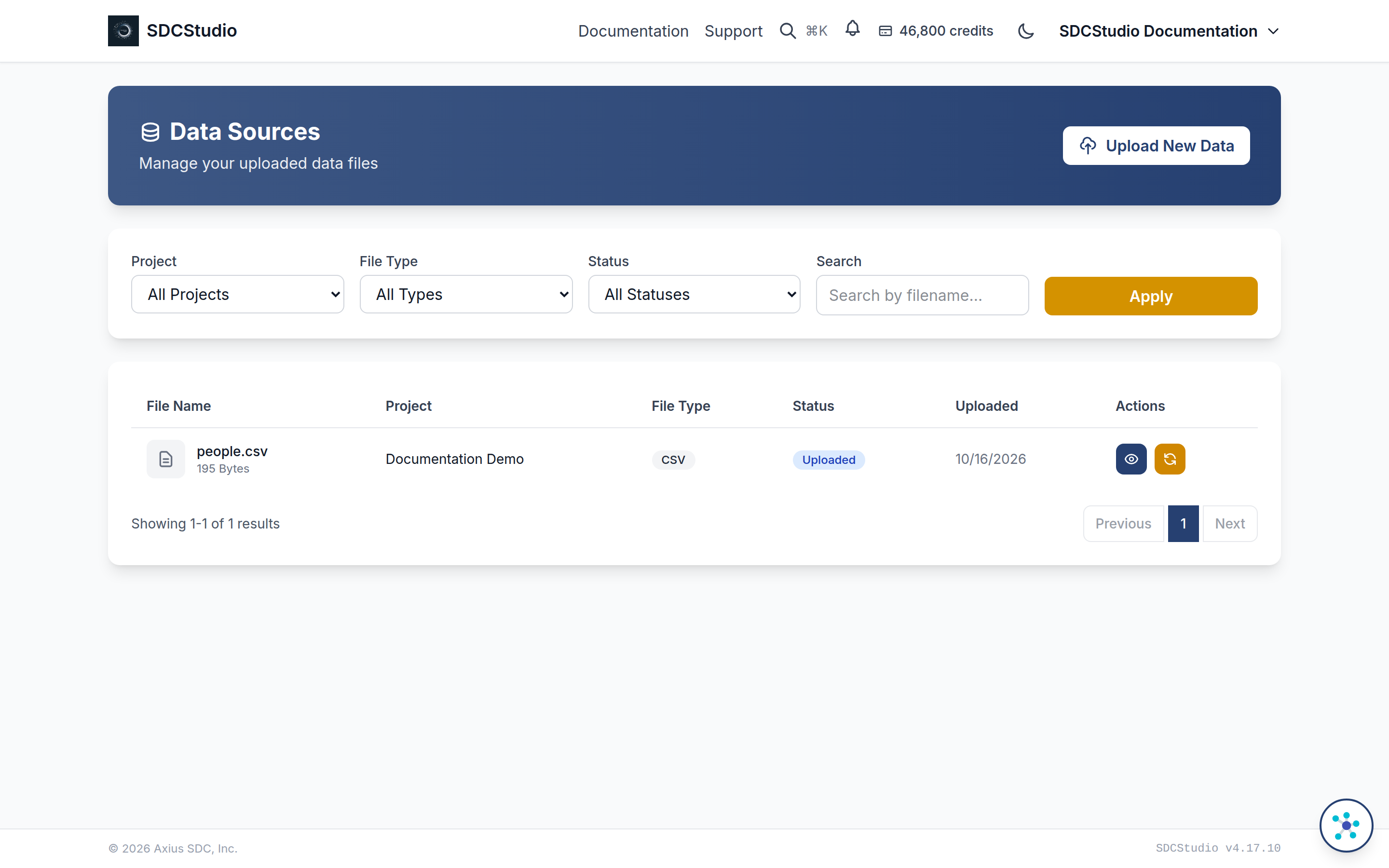
The page does not refresh itself. After Trigger Processing or Retry Processing it reloads the list once; later status changes appear when you reload the page.
The header
The header reads Data Sources, with the line Manage your uploaded data files. Upload New Data on the right opens the Upload page.
Filters
The filter card has four fields and an Apply button. Changing any field filters the table at once and returns you to its first page; Apply runs the same filter again.
- Project lists the projects you own or are a member of, with All Projects as the default. Public and library projects are not offered because their uploads are never shown here.
- File Type is All Types, CSV or Markdown.
- Status is All Statuses, Uploaded, Parsing, Parsed, Agent Processing, Modeling, Completed, Error or Agent Error.
- Search matches the text you type against the file name and the project name, ignoring case.
The table
Each row shows the file name with its size underneath, the project, the file type as a badge, the status as a badge, the upload date and the actions. The page loads all of your uploads and shows ten rows a page, newest first; Previous, the page numbers and Next move between pages, and the line under the table reads Showing 1-10 of 23 results or the equivalent. The API pages them 20 at a time (GET /api/v1/uploader/api/data-sources/?page=2, or page_size up to 1,000).
The status badge shows the status's label: Uploaded, Parsing, Parsed, Agent Processing, Modeling, Completed, Error and Agent Error (the API's values are uploaded, parsing, parsed, agent_processing, modeling, completed, error and agent_error). Blue is Uploaded; yellow is Parsing; orange is Parsed and Agent Processing; purple is Modeling; green is Completed; red is Error and Agent Error. What each value means is in the status reference in Uploading Data.
Row actions
The actions are icon buttons; the name appears when you hover over one.
View Details is on every row and opens the processing details dialog described below.
Trigger Processing is on a row whose status is uploaded; Retry Processing is on a row whose status is agent_error. Both call the same server action, which looks at the status: an uploaded file is sent to the first stage (the CSV parser, or the Markdown parser for a template), and an agent_error file is sent back to the agent stage, which runs again on the parsed data without re-uploading or re-parsing. A message above the table says what started (for example "Retrying agent processing for 'people.csv'.") and the list reloads. Only the owner of the project may do this; anyone else, and a row whose status has moved on, gets a message saying so and nothing starts. Through the API the same action is POST /api/v1/uploader/api/data-sources/<ct_id>/process/ (202 when it starts, 409 when the status allows neither); a key needs Spend. A row in any other status has neither button.
Review Metadata is on a row whose status is completed and opens the server page described below.
The processing details dialog
View Details opens a dialog titled Processing Details. Its sections are:
- File Information: File Name, File Type, Project, Uploaded By, Upload Date and Status.
- Error Details, only when the upload recorded an error: the Error Message, the Error Phase (the stage that failed) and the Error Time.
- Processing Information, when the server recorded any of it: the Parser used, the Processing Type, the number of Columns Parsed, when Parsing Started, the Parsing Duration and, after a failure, the Processing Duration Before Error.
- Debug Information, when the server recorded either: the Parse Task ID and the Agent Task ID. Quote these when you report a problem.
- Generated Data Model, once processing has created the model: a View Data Model:
</strong> link that opens it.</li> </ul> <p><strong>Close</strong> dismisses the dialog. If the details cannot be loaded, the dialog shows the server's message in their place.</p> <h2 id="the-review-metadata-page">The Review Metadata page</h2> <p><strong>Review Metadata</strong> opens a server page headed <strong>Step 2 of 3: Review and Edit Metadata</strong>. It lists the columns the parser found in the file, one row each, with editable <strong>Name</strong>, <strong>Type</strong>, <strong>Units</strong>, <strong>Min</strong> and <strong>Max</strong> fields. A value the parser inferred rather than read from the file is marked with an asterisk. Name and Type are required; the other three may be blank.</p> <p><strong>Confirm Metadata</strong> saves the rows with the upload's analysis results, marks every column as user-confirmed, and returns you to the Data Sources page. The saved values stay with the upload record; they do not change the components and model that processing already created from the file. To change those, edit them as described in <a href="data-modeling.html">Data Modeling</a>.</p> <h2 id="cost">Cost</h2> <p>Processing an upload is billed when it finishes, not when the file is stored. The charge is 100 credits for each new component and each new cluster the upload creates, taken when processing completes; columns matched to existing components are free; nothing is charged if processing fails. Before the agent stage creates anything it checks your balance against that total, and a shortfall ends processing with an <code>Insufficient credits</code> message you can read in <strong>View Details</strong>. Balances and the transaction history are in <a href="wallet-billing.html">Wallet and Billing</a>.</p> <h2 id="when-a-row-is-stuck">When a row is stuck</h2> <p>A row that stays at <code>uploaded</code> has not started processing; <strong>Trigger Processing</strong> starts it. A row at <code>error</code> failed in the first stage, usually because of the file itself or a short balance; open <strong>View Details</strong>, read the message, fix the cause and upload the file again under a new name. A row at <code>agent_error</code> parsed correctly but failed while building the model; <strong>Retry Processing</strong> runs that stage again without a new upload. The symptoms and their fixes are collected in <a href="troubleshooting.html">Troubleshooting</a>.</p> </article> </div> </main> <!-- Footer --> <footer class="bg-[#0a2342] text-white py-12 px-6 md:px-12 mt-20"> <div class="container mx-auto text-center"> <p class="text-sm text-[#e1e6ea]"> © 2026 Axius SDC, Inc. | <a href="/tutorial/" class="hover:text-[#2ca58d] transition">Tutorial</a> | <a href="/docs/" class="hover:text-[#2ca58d] transition">Documentation</a> | <a href="https://sdcstudio.axius-sdc.com" class="hover:text-[#2ca58d] transition">SDCStudio</a> </p> </div> </footer> </body> </html>