Creating a Model: the Model Wizard and the New Model Form
Overview
A data model is the root of a Governed Data Record: it names one cluster as its data structure and carries the metadata, authorship, provenance and governance references that every record made from it will inherit. SDCStudio has two hand-built ways to create one. The Model Wizard walks through the same fields in five steps; the New Model form shows them on one page. Both create the same object, and both charge 500 credits when the model is created (see Wallet and Billing). Editing the model afterwards is free.
The Mind Map page at /app/models/mindmap/new draws a model as a diagram and does not yet save it.
Where each one starts
- On the Models page, New Model opens the Model Wizard. If the project filter is set, that project is preselected. The smaller Advanced Form link beside it opens the New Model form.
- On a project page, New Model opens the Model Wizard with that project preselected, and the smaller Advanced Form link beside it opens the New Model form. Both are shown to the project owner, to staff, and to anyone with a role in the project.
- On the dashboard, the New Data Model card opens the Model Wizard.
- Typing
/app/models/wizardor/app/models/newopens either directly; add?project=<project id>to preselect a project. - Every account has a default project from the moment it exists (since 4.17.1), named after the Modeler and private, so the project pickers are never empty; the assembly API builds in it when no project is named. The wizard asks you to choose a project. Choose a different default in Settings, under Modeler Information; rename a project on its own page.
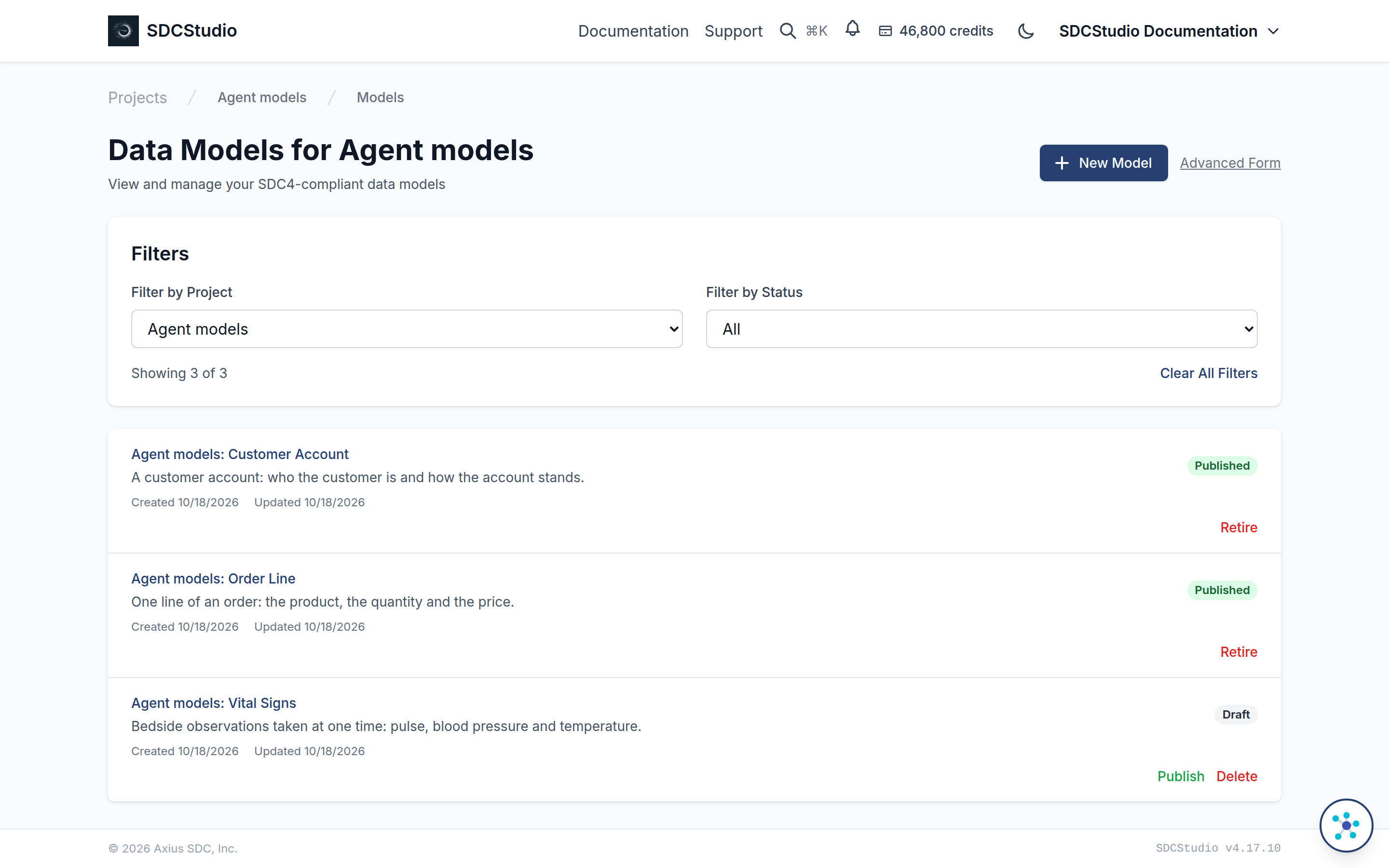
The Model Wizard
The page is titled Create New Data Model. The project picker on both forms lists the projects you own or belong to. The five steps are Basics, Metadata, Authors, Data & Provenance and Review & Save. Steps 2, 3 and 4 are optional and have a Skip button; Back returns to the previous step and Cancel returns to the Models page without creating anything. You can click a completed step in the header to go back to it.
Step 1: Basics
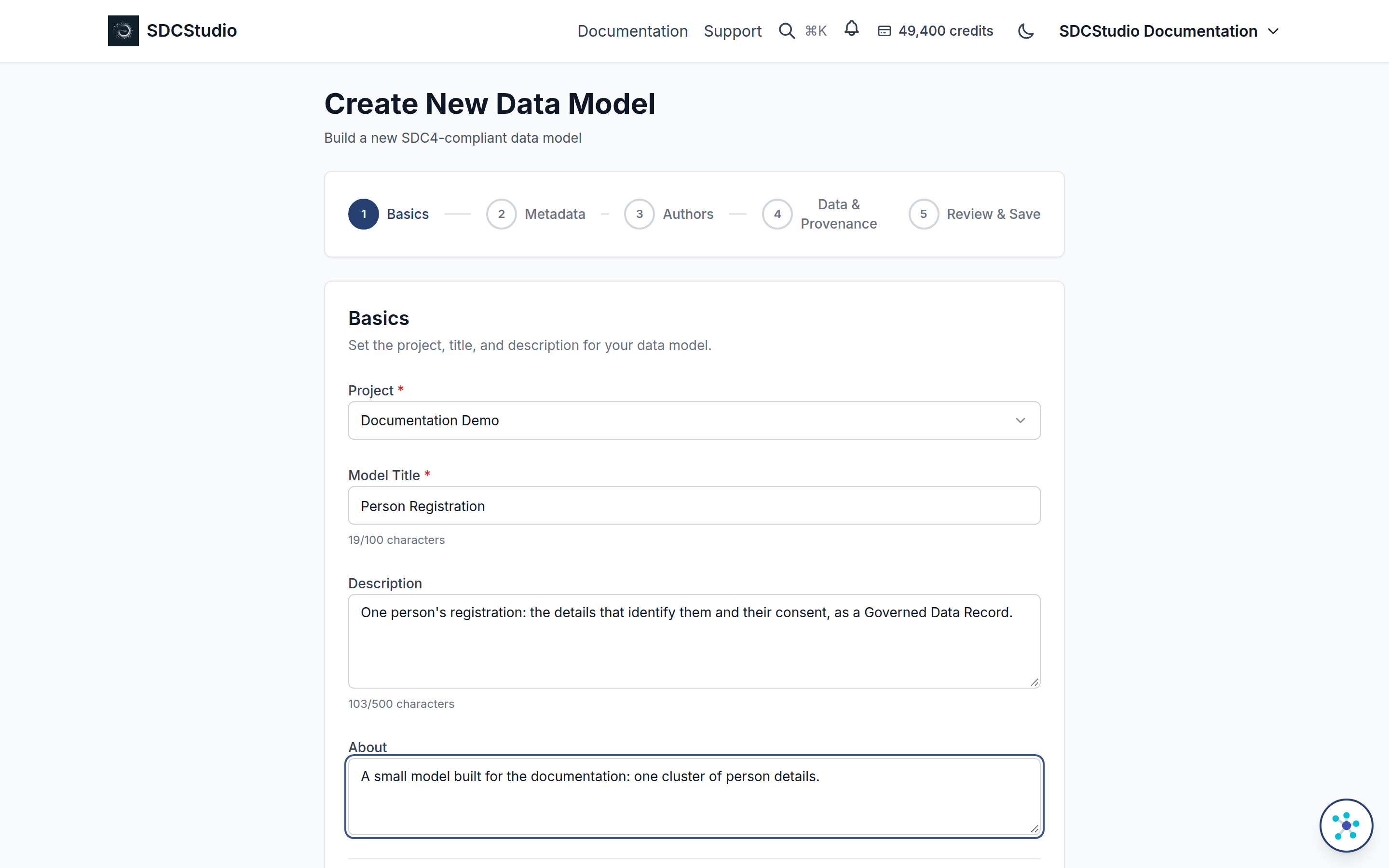
- Project (required). The list holds the projects you own or are a team member of. Every account has at least its default project, so the list is never empty.
- Model Title (required). Between 3 and 100 characters; a counter shows the length. The title must be unique within the project, and the server refuses a duplicate when you create the model.
- Description (optional). Up to 500 characters.
- About (optional). A short summary of the model.
You cannot leave this step until the project and title validate.
Step 2: Metadata
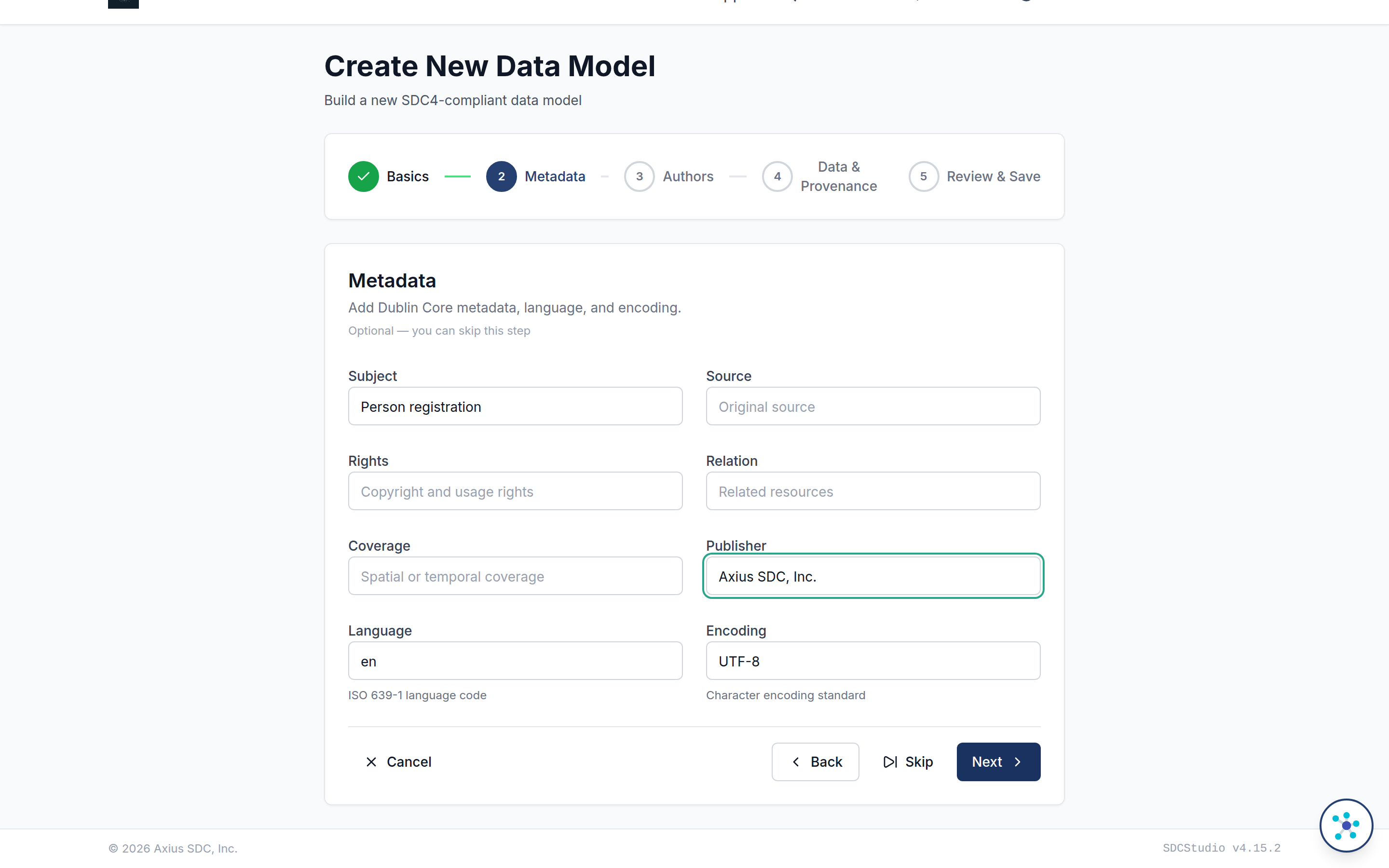
These are the Dublin Core fields published with the model: Subject, Source, Rights, Relation, Coverage and Publisher, each a single line of text. Below them, Language holds an ISO 639-1 code and starts as en, and Encoding starts as UTF-8. All eight can be left as they are.
Step 3: Authors
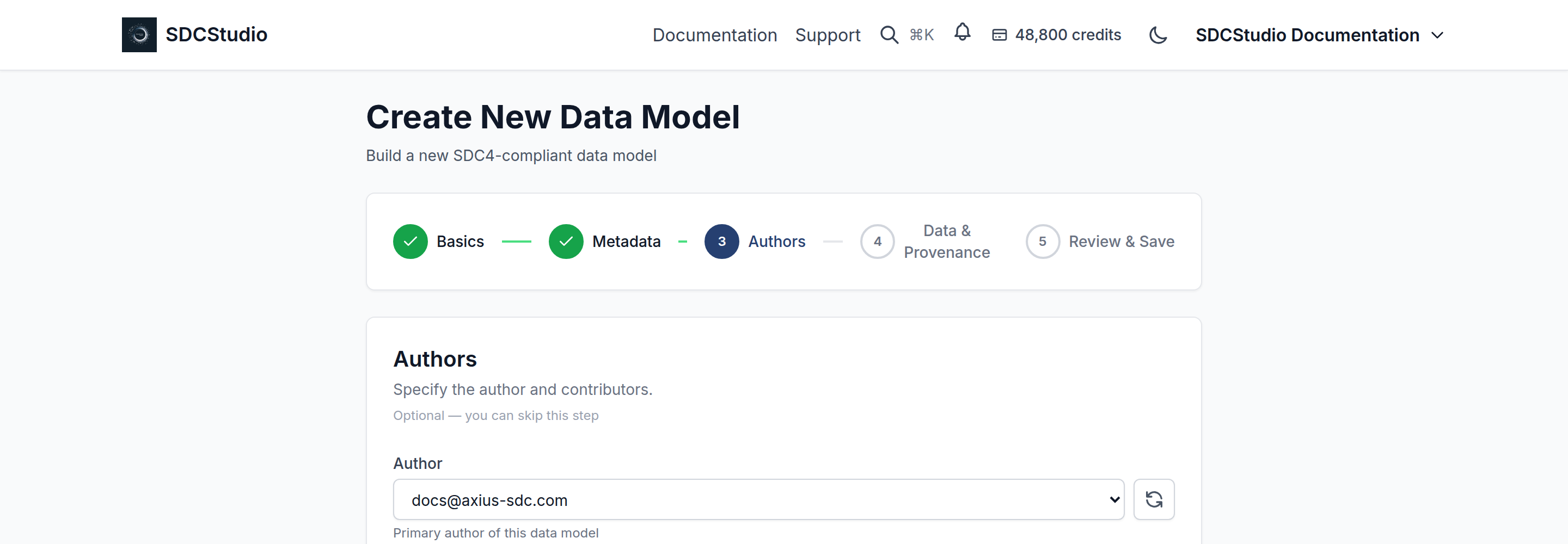
Author is the primary author and starts set to you. Contributors takes any number of people; hold Ctrl or Cmd to select more than one. Both pickers list you and the project's team, its owner and accepted members; nobody outside the team appears. If you reached this step without a project the page says Please select a project in Step 1 first.
Step 4: Data & Provenance
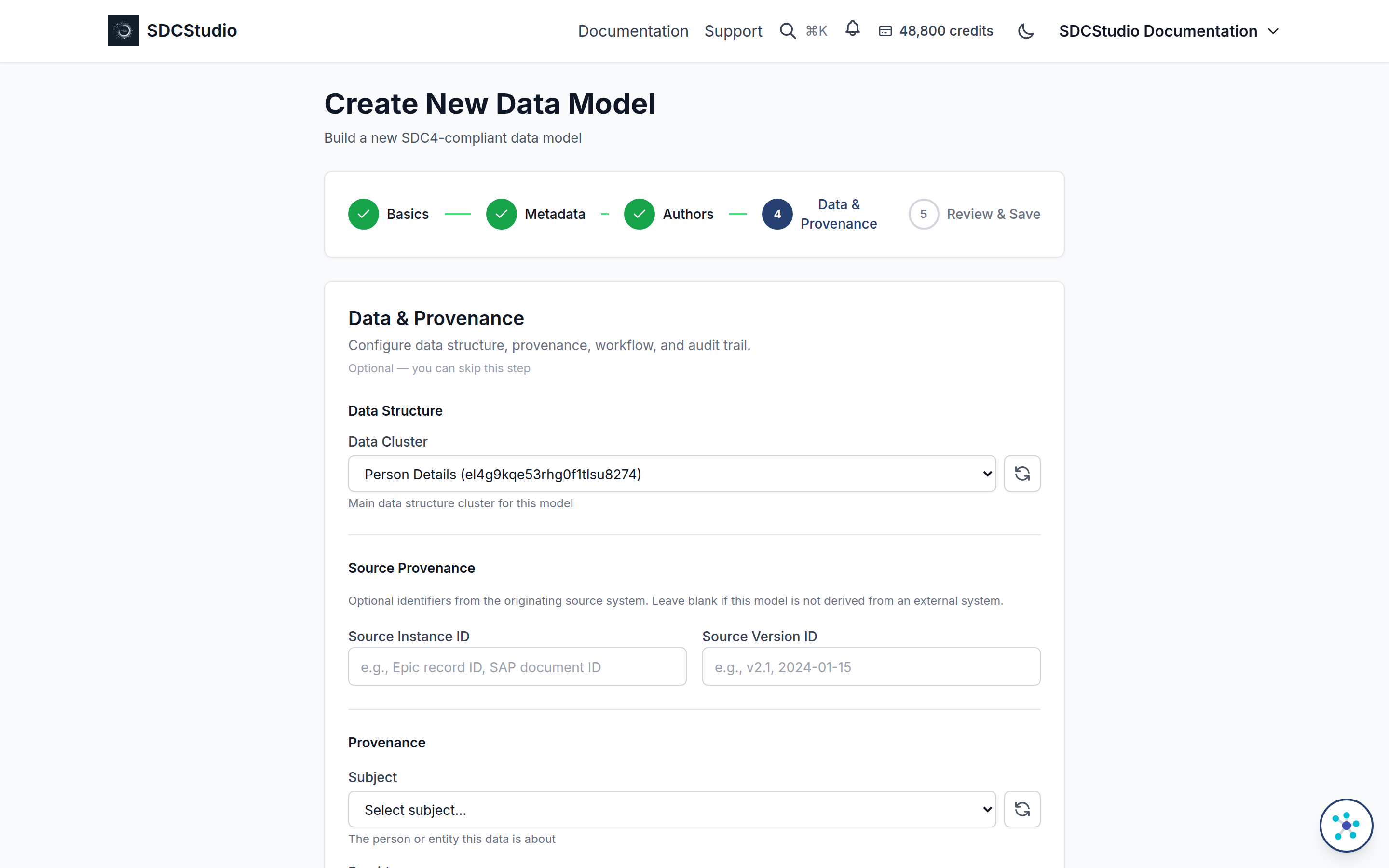
Every field on this step is a picker over components that already exist. Each option shows the component's label and its identifier, and the refresh button beside a picker reloads the list after you create something in another tab.
- Data Cluster, under Data Structure, is the cluster that becomes the model's data. The list contains the published clusters in the project, the public published clusters from every project, and your own clusters in the project whatever their status. You can leave it empty and set it later by editing the model, but the model cannot be published until it names a published cluster.
- Source Instance ID and Source Version ID, under Source Provenance, are free text for the record identifier and version in the system the model was derived from, such as an Epic record ID or an SAP document ID. Leave them blank when there is no external source.
- Under Provenance: Subject and Provider each take a Party component; Participations takes any number of Participation components; Protocol takes an XdString.
- Under Workflow & Access Control: Workflow takes a Cluster and Access Control Service takes an XdLink.
- Under Audit Trail: Audits takes any number of Audit components and Attestation takes one Attestation.
- Related Links takes any number of XdLink components.
The component types are described in the data type reference.
Step 5: Review & Save
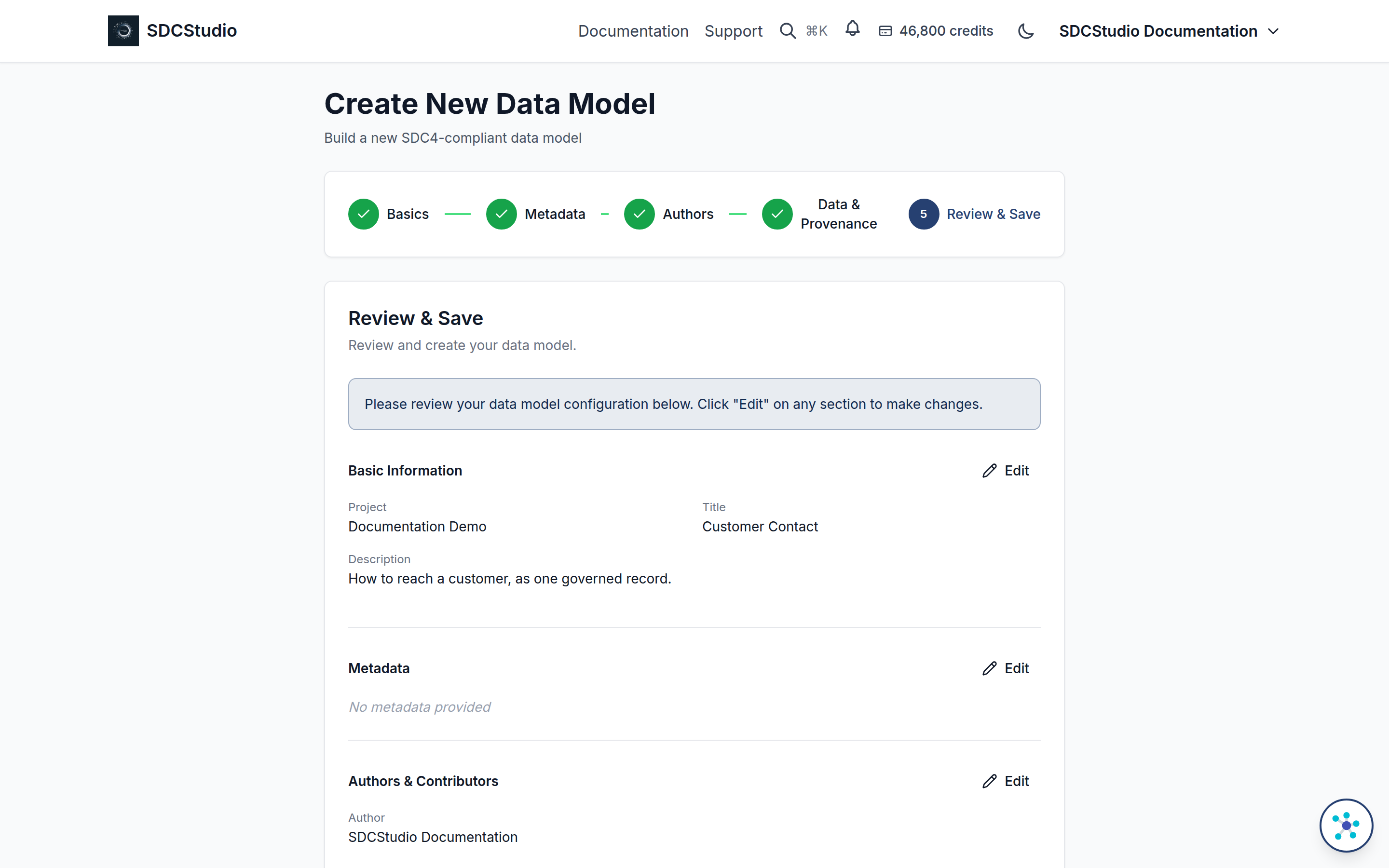
The review step lists what you entered under Basic Information, Metadata, Authors & Contributors and Data & Provenance, with an Edit button on each section that returns to that step. Sections you skipped read No metadata provided or No data/provenance configured. Selections made with a picker are shown by name (people) or label (components).
Create Model sends the model to the server. If the server refuses, the message appears at the top of the page and you stay on the review step; the two common causes are a title already used in the project and a balance below 500 credits.
The New Model form
The New Model form is the same set of fields on one page, grouped in collapsible sections: Basic Information (open by default), Dublin Core Metadata, Authors & Contributors, Configuration (Language and Encoding), Data Structure, Provenance, Workflow & Access Control, Audit Trail and Related Links. Click a section heading to open it. The validation is the same as the wizard's: project required, title between 3 and 100 characters, description at most 500. The Basic Information section also holds Source Instance ID and Source Version ID. The model page's Edit uses this same form.
Create Model creates the model and opens it. Cancel returns to the project page when you came from one, otherwise to the Models page. A panel below the form, About Data Models, summarizes what you can do next.
What is created
The new model is a draft. It has a permanent identifier (the ct_id in its address) and a separate, auto-generated Instance ID, both CUID2 values that never change. If you did not choose an author, the author is you. The creation charges 500 credits in the same transaction that saves the model: a creation that fails charges nothing, and an empty wallet blocks the creation.
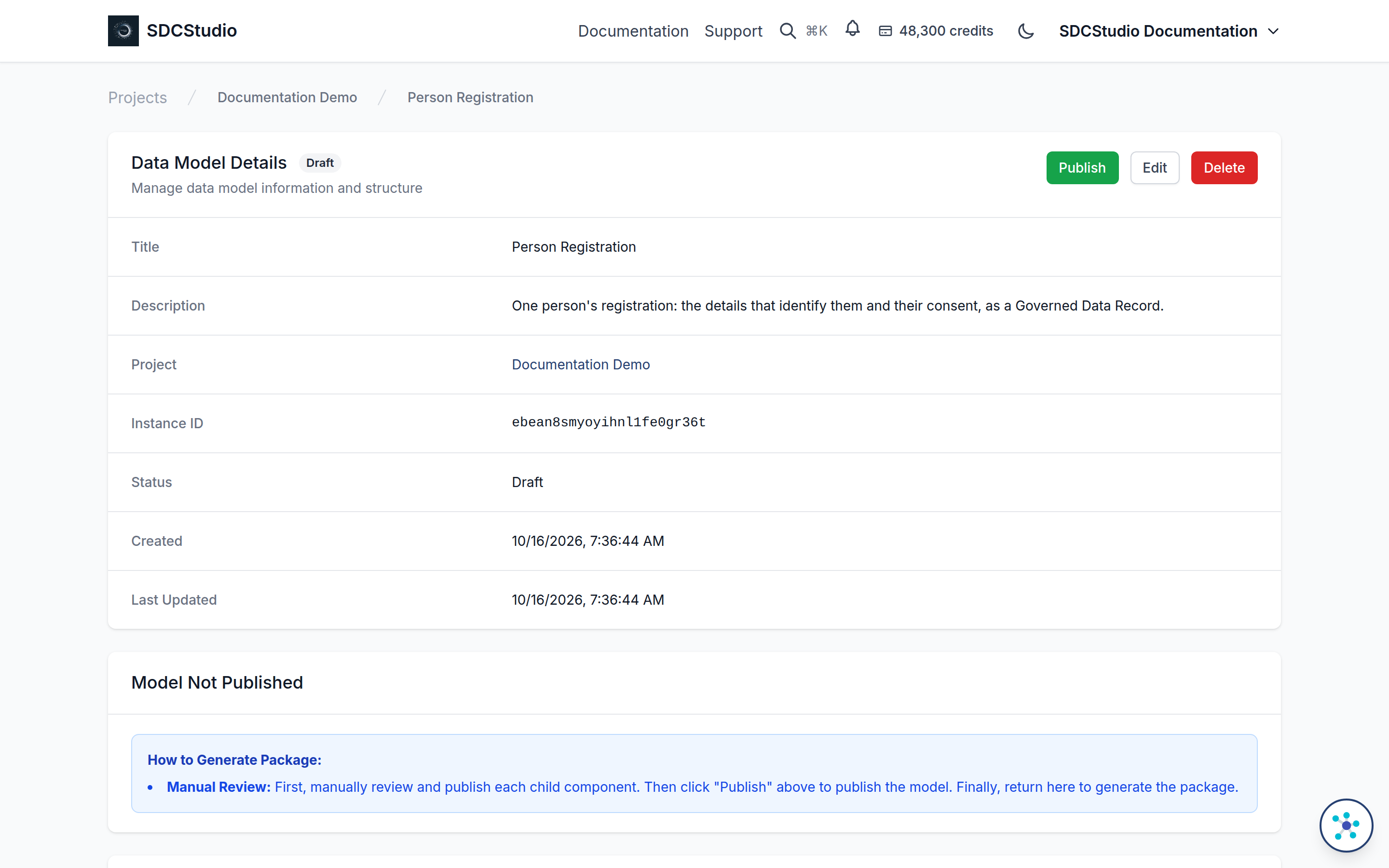
The model's detail page shows the Draft badge and the buttons your role allows: Edit to the project owner, team admins, staff and any team member while the model is a draft; Delete to the project owner only; Publish to the project owner, team admins and staff. Publish succeeds only when the model's data cluster is itself published, which in turn requires every component in that cluster to be published; the page's Model Not Published panel says the same. Publishing is permanent: once published, the model and everything in it is fixed, every Governed Data Record made from it validates against that fixed definition, and a change means a new model (see Copy and Retire). The outputs that publishing produces, and the Generate step that follows, are in Generating Outputs. Building and editing the components and clusters the model refers to is covered in Data Modeling.